How to Install and Activate PressWHMCS
Thank you for purchasing the PressWHMCS module! This guide provides detailed instructions to install and activate the module within your WHMCS platform. By following these steps, you’ll have your module up and running in no time, enabling you to resell Pressable services seamlessly.
Prerequisites
Before you begin, ensure you have the following requirements in place:
- Active Pressable Account: You need an active Pressable account with sufficient permissions to generate an API key.
- PressWHMCS Module Purchase: Confirm that you’ve purchased the PressWHMCS module and have access to your license key.
- Valid WHMCS License: Your WHMCS installation must be fully licensed and operational on your server.
- PHP Version: Your server must run PHP version 8.1 or 8.3. -> Check your PHP version.
- Ioncube Loader Extension: Ensure Ioncube Loader version 14 is installed on your server. -> How to install Ioncube Loader.
Note: Meeting these prerequisites is critical to a successful installation. If you’re unsure about any of these requirements, follow the provided links for additional guidance.
Step 1: Download the Module and Retrieve Your License Key
After purchasing the PressWHMCS module, you’ll gain access to the module files and a unique license key. This key is mandatory for the module to function, so ensure it’s valid and active before proceeding.
Follow these steps to download the module and obtain your license key:
- Log in to Your PressWHMCS Client Area: Access your account via the PressWHMCS client portal.
- Navigate to Services: From the dashboard, go to Services and select the PressWHMCS module service you purchased.
- Download the Module: Click the Download button to retrieve the module files.
- Copy Your License Key: Locate and copy the license key provided in the service details for use in later steps.
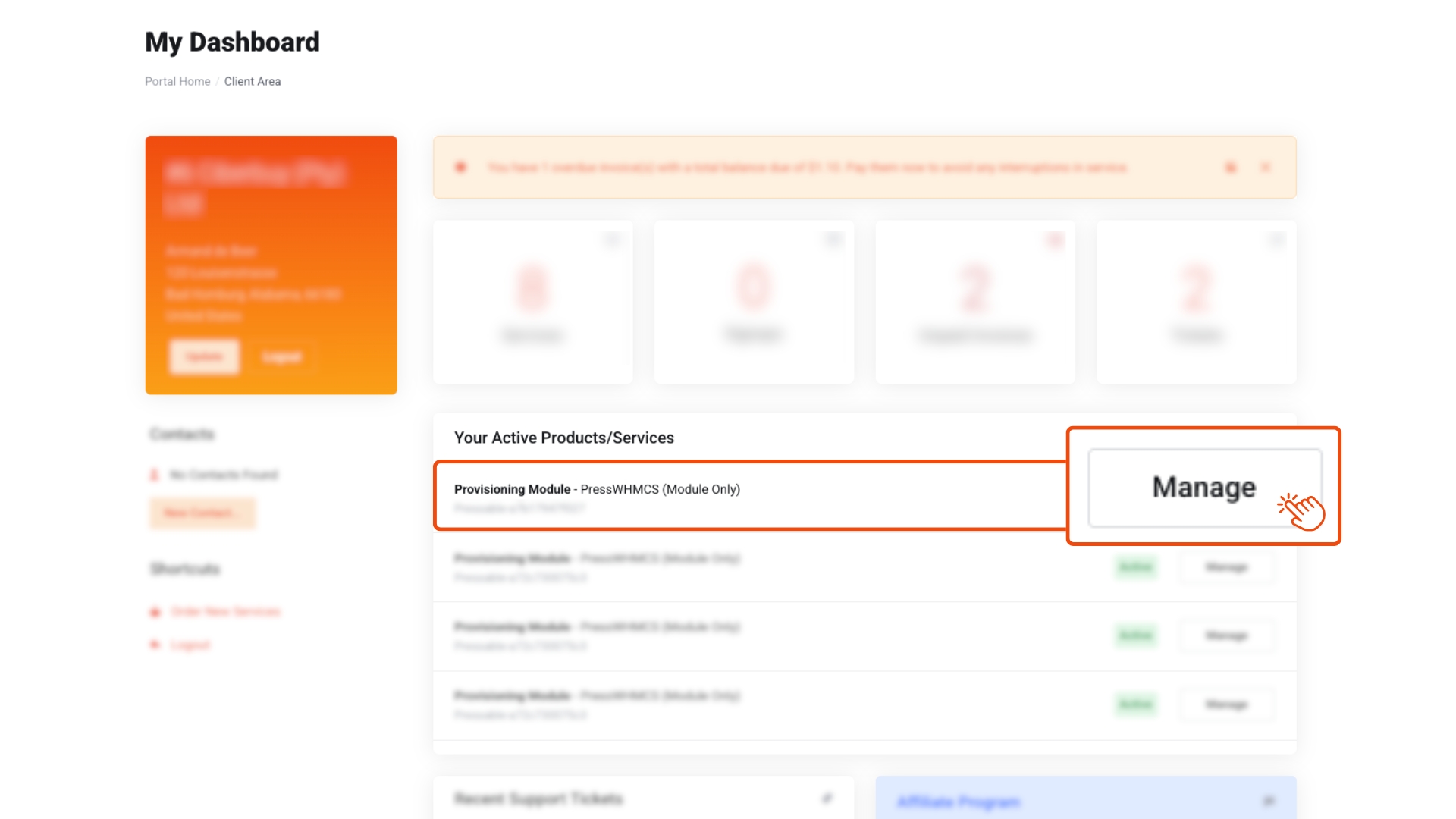
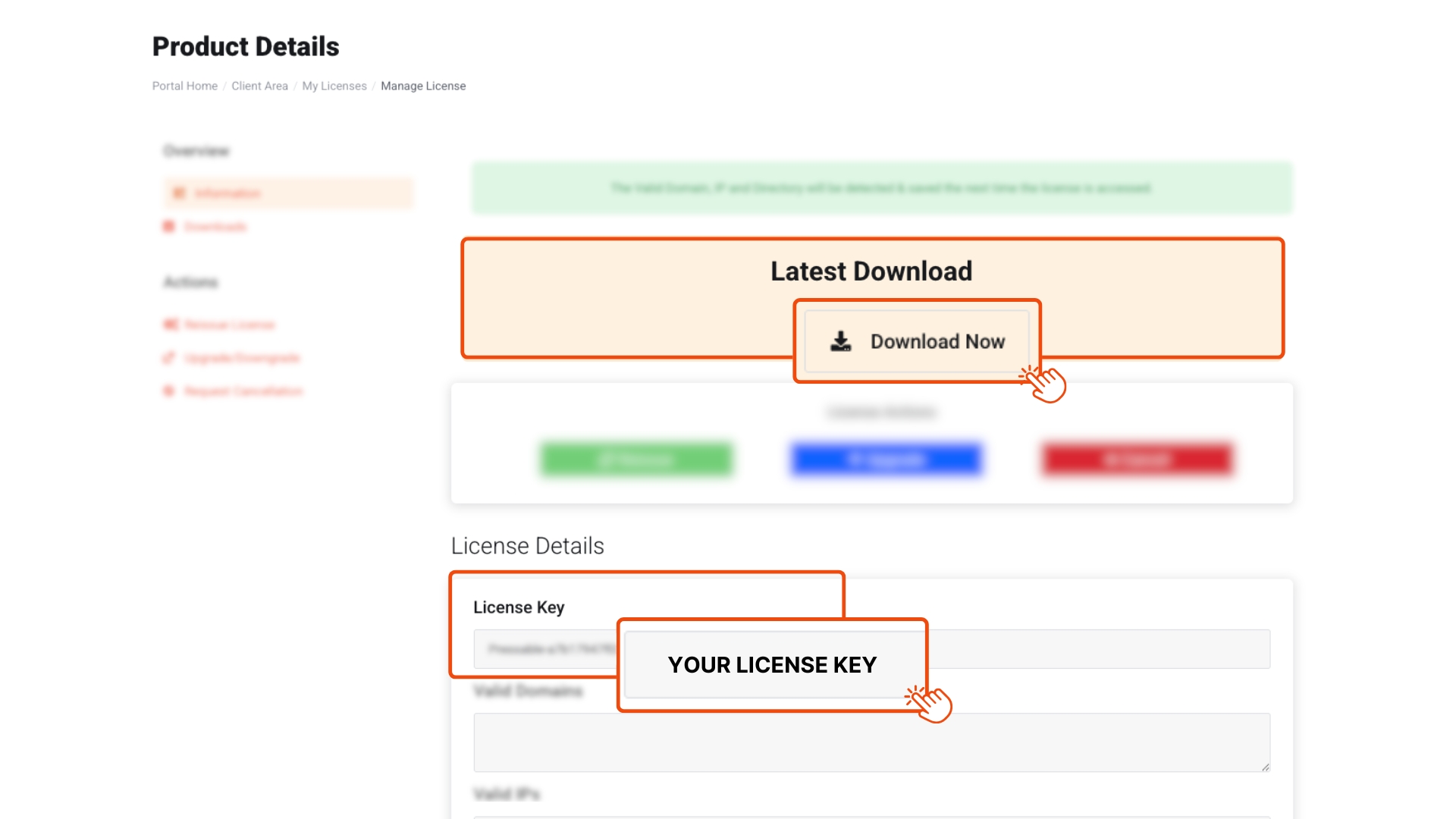
Tip: Store your license key securely, as you’ll need it during the configuration process.
Step 2: Upload the Module to Your WHMCS Installation
To integrate the PressWHMCS module into your WHMCS system, you’ll need to upload and correctly place the module files on your server. This step requires access to your WHMCS file structure.
Instructions:
Locate Your WHMCS Installation Directory:
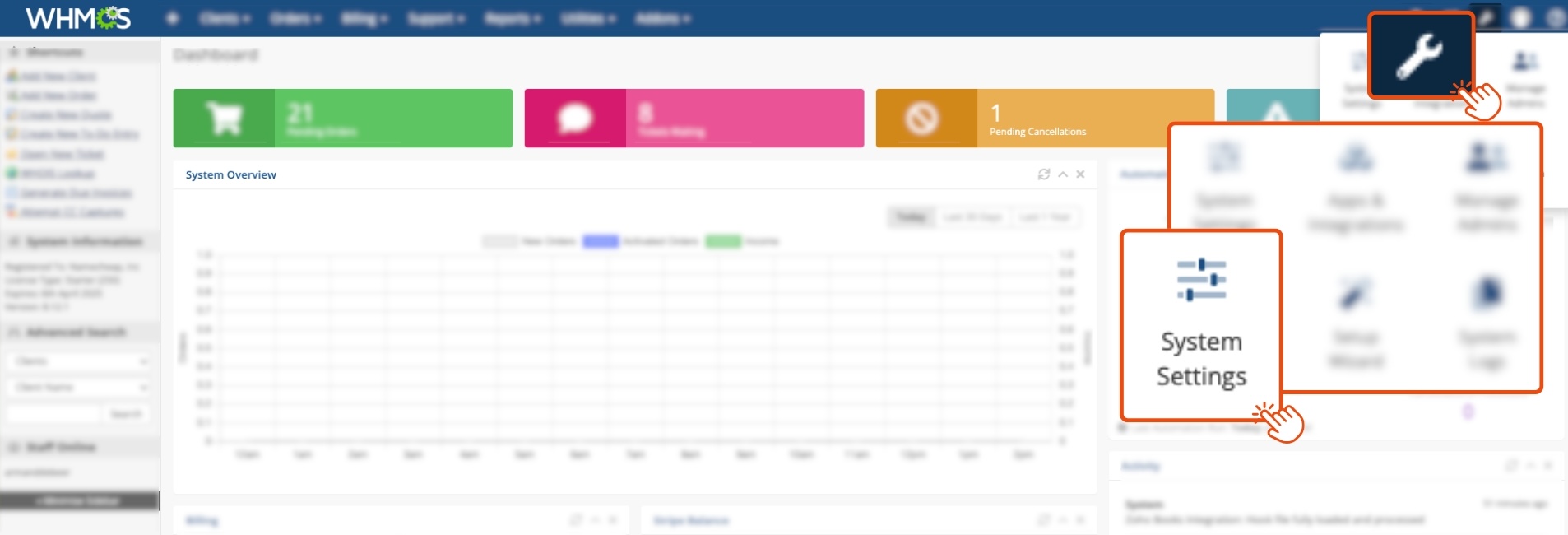
- Log in to your WHMCS Admin area by visiting https://yourdomain.com/admin (replace yourdomain.com with your actual domain).
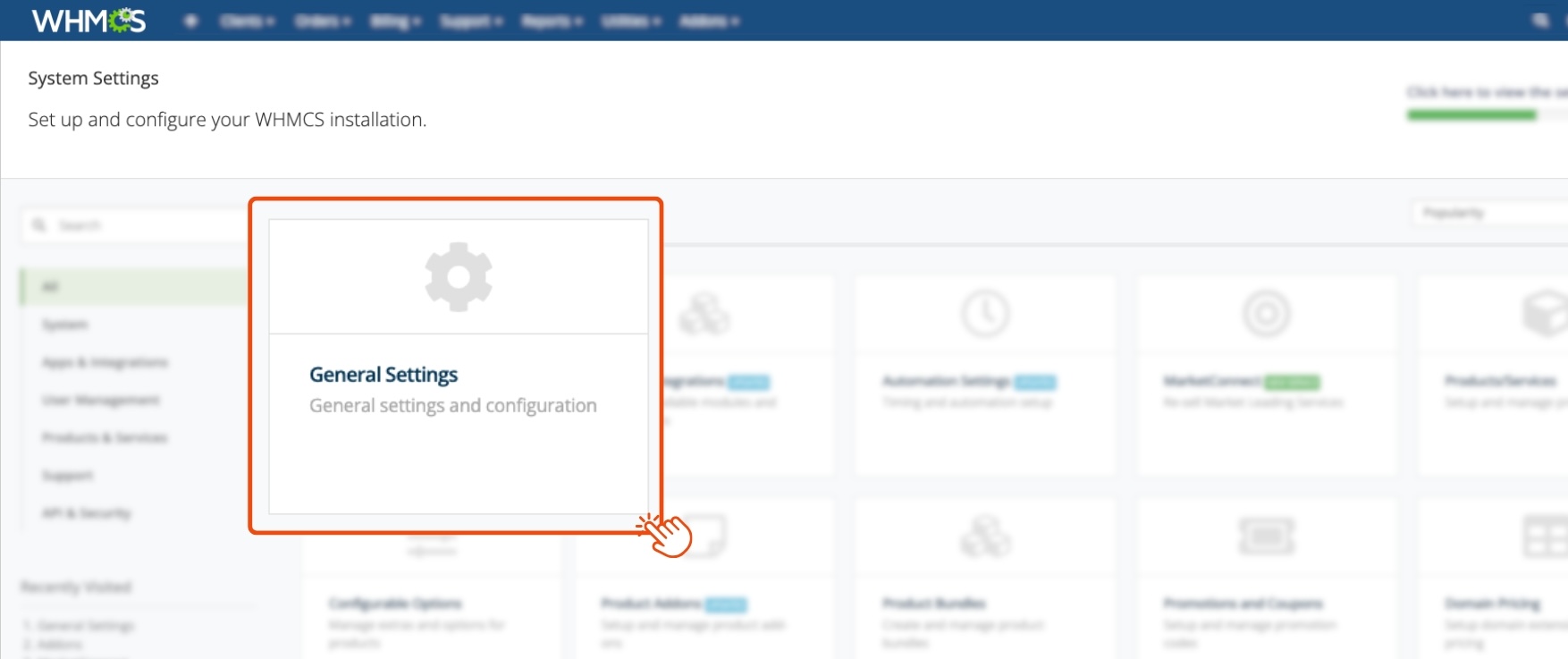
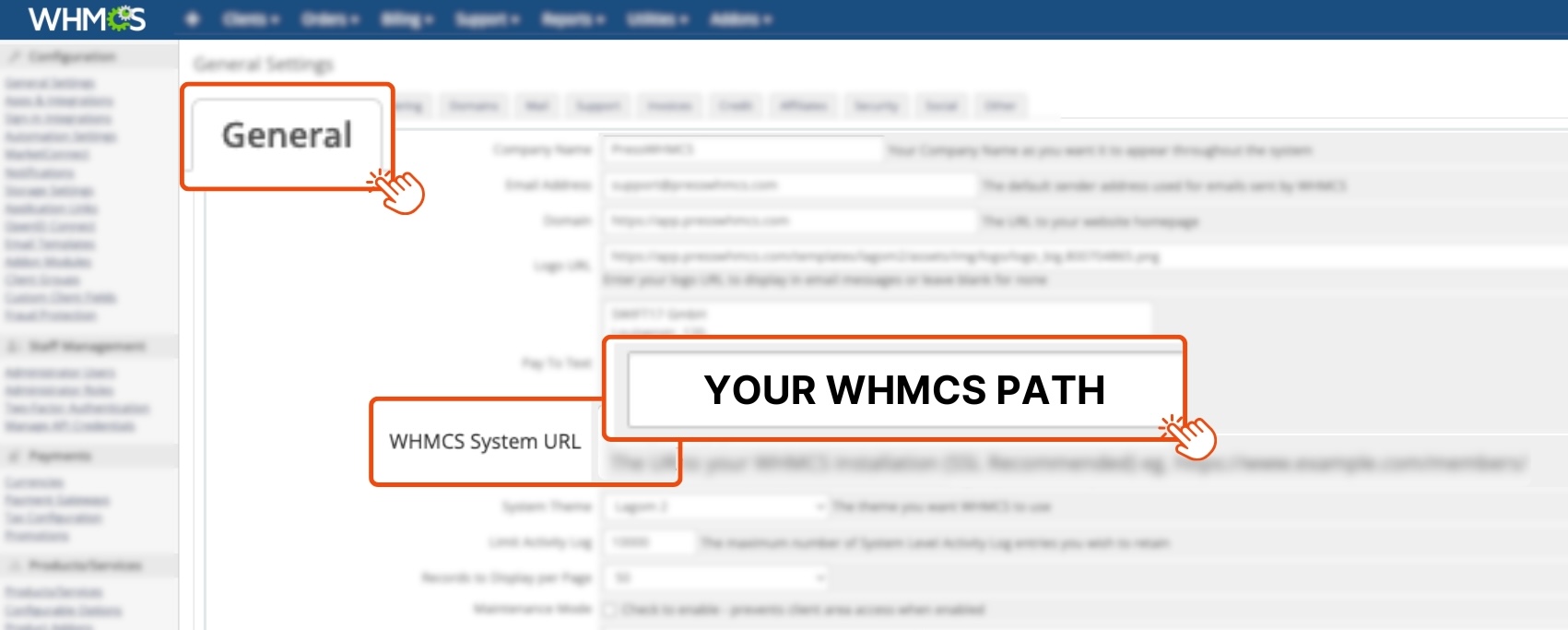
- Navigate to Configuration (wrench icon) → System Settings (or “Setup” in older versions) → General Settings.
- Under the General tab, note the WHMCS Directory path.
- Alternatively, check the configuration.php file in your WHMCS root directory for the installation path.
Access Your Server’s File System:
Upload and Extract the Module Files:
- Upload the downloaded module file to a temporary directory on your server.
- Extract the contents. You’ll see two folders: PW and Server.
Place the Folders in the Correct Directories:
- Move the PW folder to: /whmcs/modules/addons/
- Move the PW in Server folder to: /whmcs/modules/servers/
- Replace /whmcs/ with your actual WHMCS installation directory path (e.g., /domains/yourdomain/public_html/).
Verify Placement:
- Confirm that all files within the PW and Server folders are correctly placed in their respective directories.
Important: Before proceeding, back up your WHMCS installation to prevent data loss in case of errors. -> How to back up your WHMCS installation.
Step 3: Activate and Configure the Module in WHMCS
With the module files uploaded, the final step is to activate and configure the PressWHMCS module through your WHMCS admin panel.
Instructions:
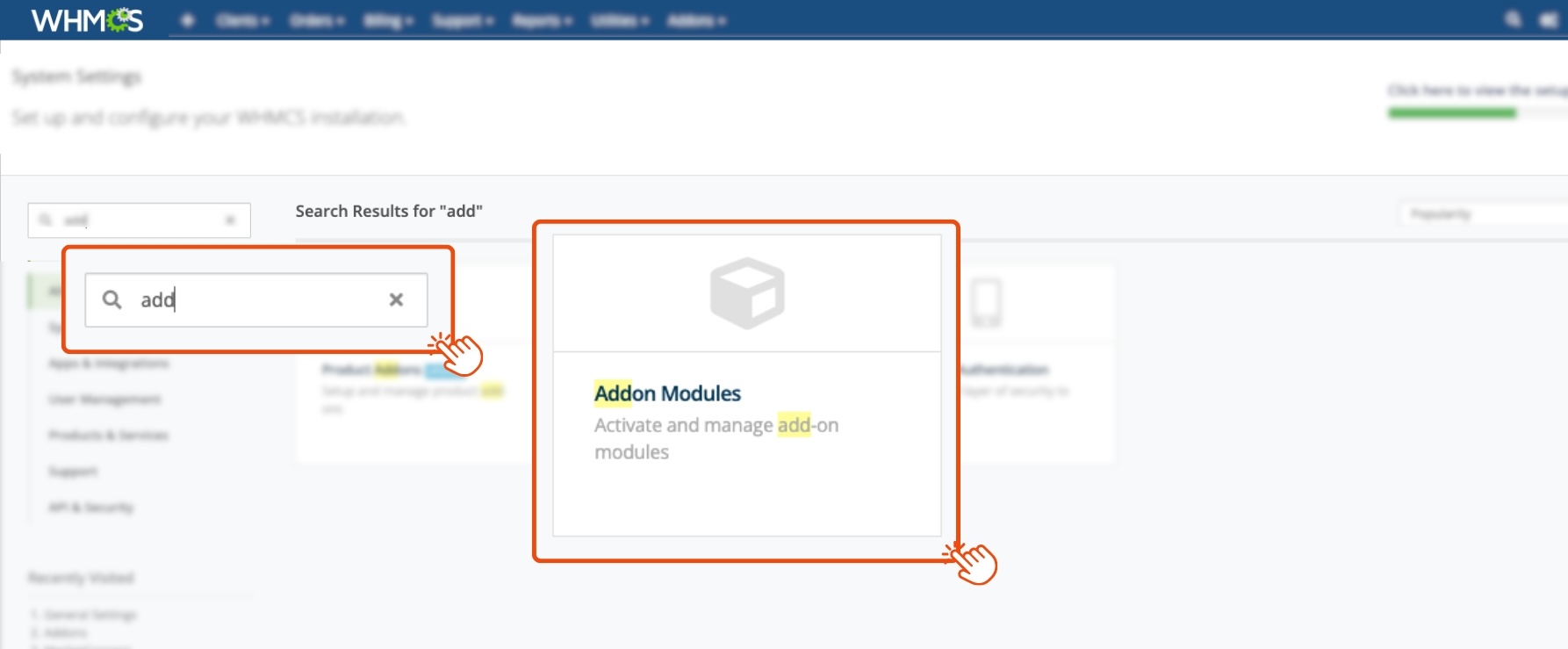
- Navigate to Addon Modules:
- Log in to your WHMCS Admin area.
- Go to Configuration (wrench icon) → System Settings → Addon Modules.
- Activate the Module:
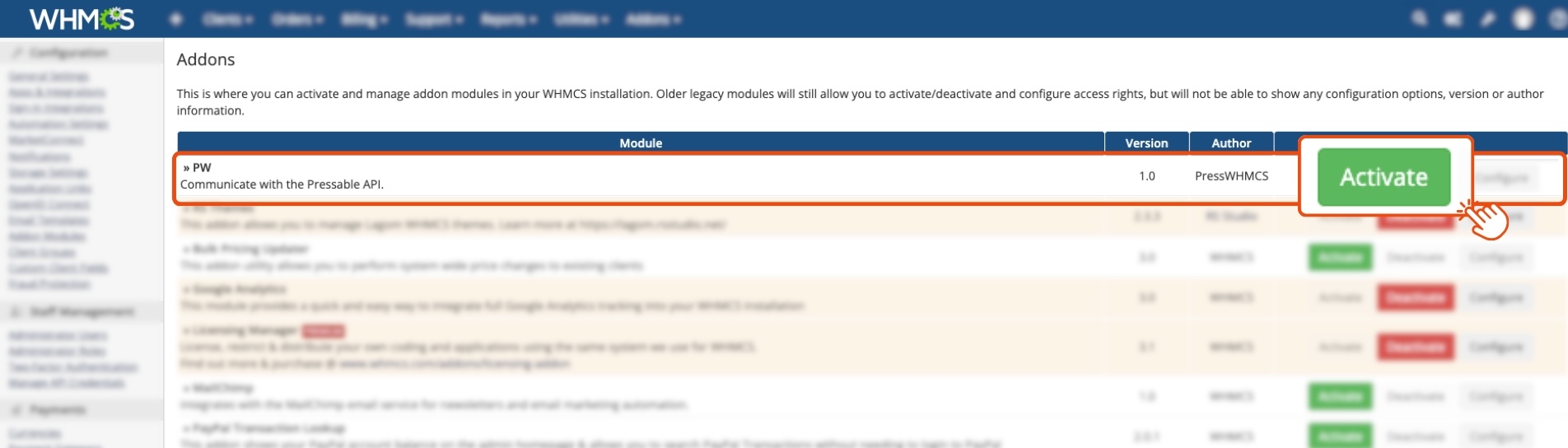
- Find the PW addon in the list of available modules.
- Click the Activate button. The page will refresh, and the Configure button will appear.
- Configure the Module Settings:
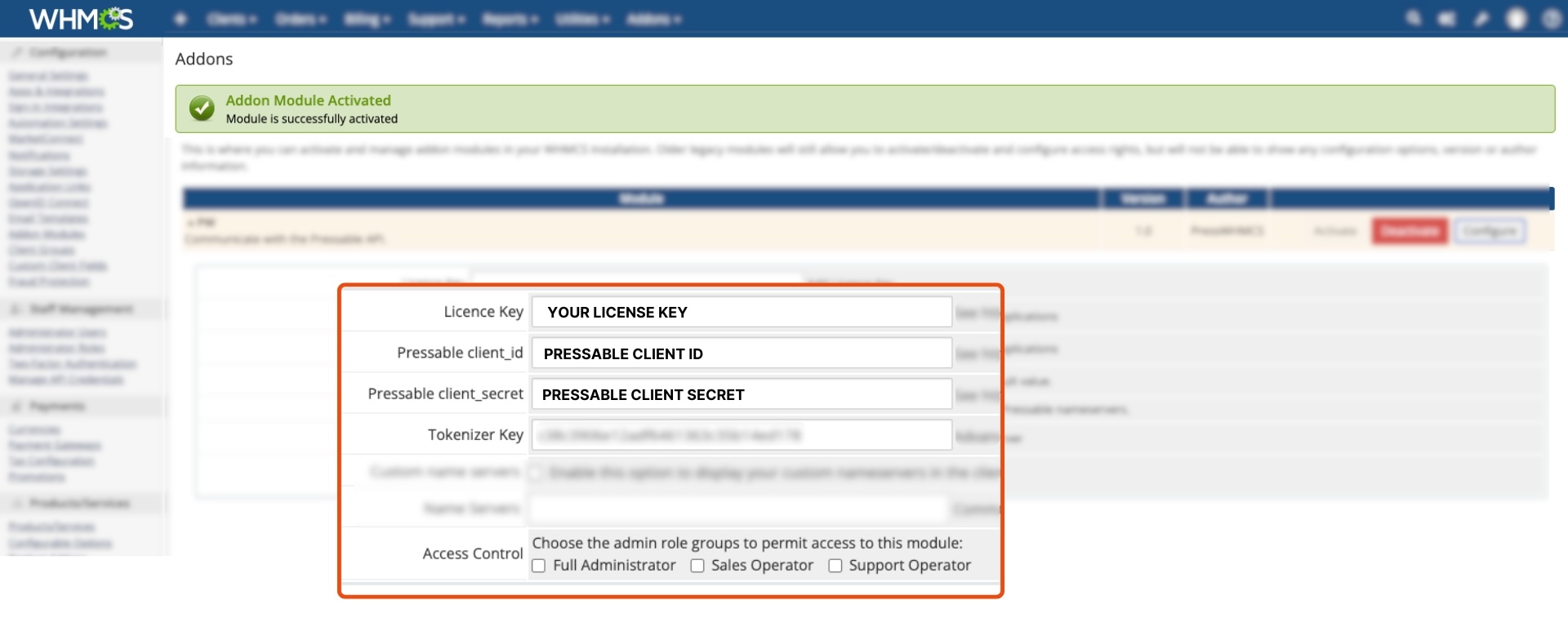
- Click Configure to access the settings form.
- Enter the following details:
- License Key: Paste the license key you copied from your PressWHMCS account.
- Pressable Client ID: Provide your Pressable Client ID. -> How to find your Pressable Client ID and Secret.
- Pressable Client Secret: Enter your Pressable Client Secret.
- Tokenizer: Retain the default value; do not alter or remove it.
- Custom Nameservers (Optional): Enable this option if desired, and fill in the nameserver fields. Configuring Custom Nameservers in PressWHMCS.
- Access Control: Select Full Administrator to ensure proper permissions.
- Save Your Configuration:
- Click Save Changes to apply the settings.
Congratulations!
Your PressWHMCS module is now fully installed and configured! You’re ready to start reselling Pressable services through your WHMCS platform.
For additional support or advanced configuration options you wish to implement, open a ticket here.