Understanding the PressWHMCS Module Workflow
Once you’ve configured your hosting product using the PressWHMCS module as outlined in the How to Create a Hosting Product with PressWHMCS guide, your customers can begin ordering services through your WHMCS platform. This guide walks you through the customer journey—from placing an order to managing their Pressable-powered WordPress site—highlighting the key steps and features involved.
The screenshots in this guide use the WHMCS Theme Six, though the PressWHMCS module is compatible with most major WHMCS themes. If you’d like to customize the styling, you can request a custom quote by submitting a support request here.
The Ordering Process
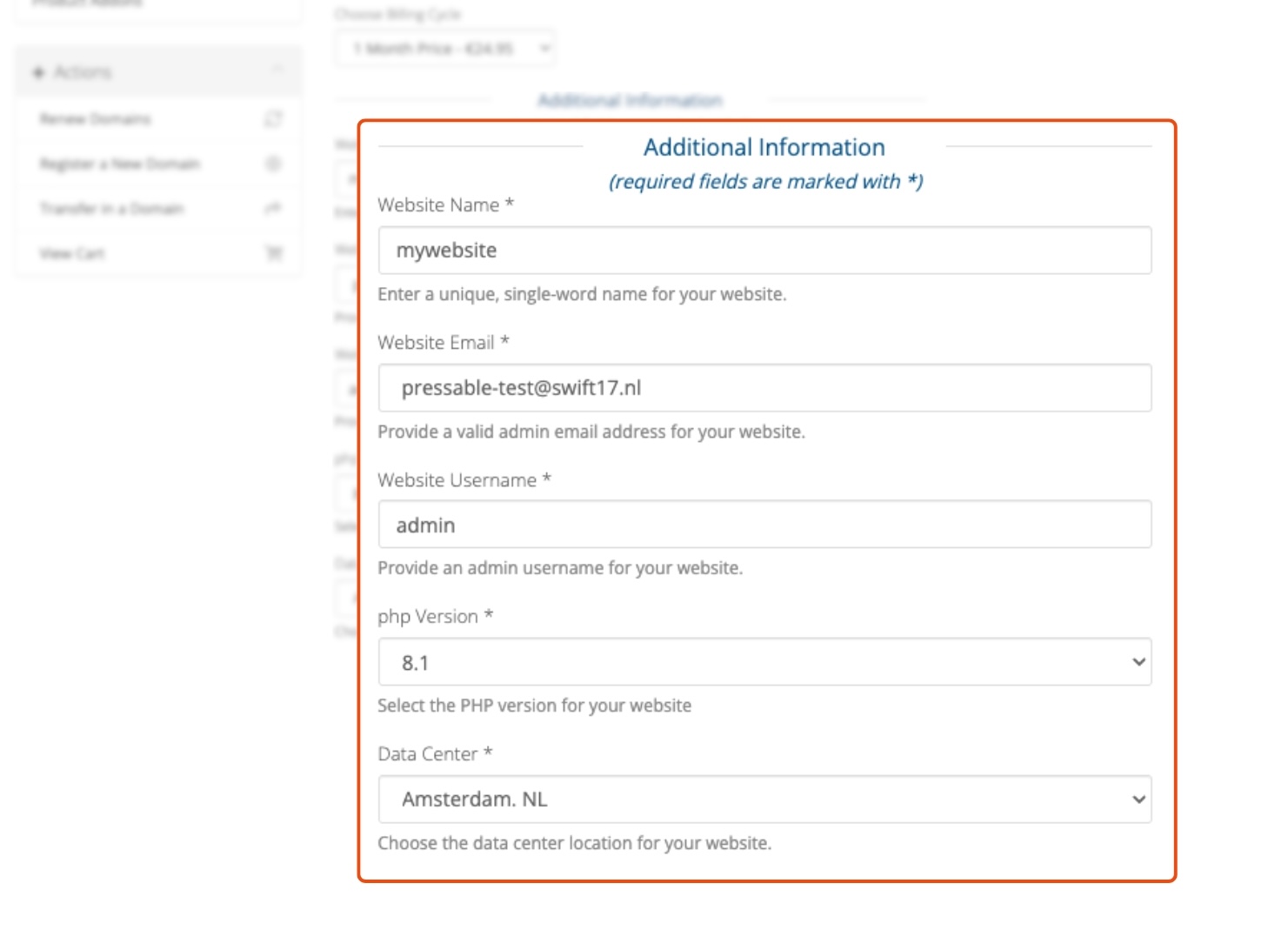
When a customer places an order for a hosting service integrated with the PressWHMCS module, they are required to provide five key pieces of information to enable site creation on Pressable:
- Website Name
A unique, single-word identifier for the site (e.g., mywebsite). Since Pressable requires unique website names, if a name is already taken (e.g., acme), the module automatically appends random digits (e.g., acme-123) to avoid errors and ensure a seamless ordering experience. - Website Email
The admin email address for the WordPress site, where the welcome email with login details will be sent. To customize this email, refer to WordPress Welcome Email Setup with PressWHMCS. - Website Username
The admin username for accessing the WordPress site. - PHP Version
The desired PHP version for the site (e.g., 8.1, 8.2, or 8.3). - Data Center Selection
The preferred data center location (e.g., Amsterdam, Los Angeles, Washington D.C., or Dallas).
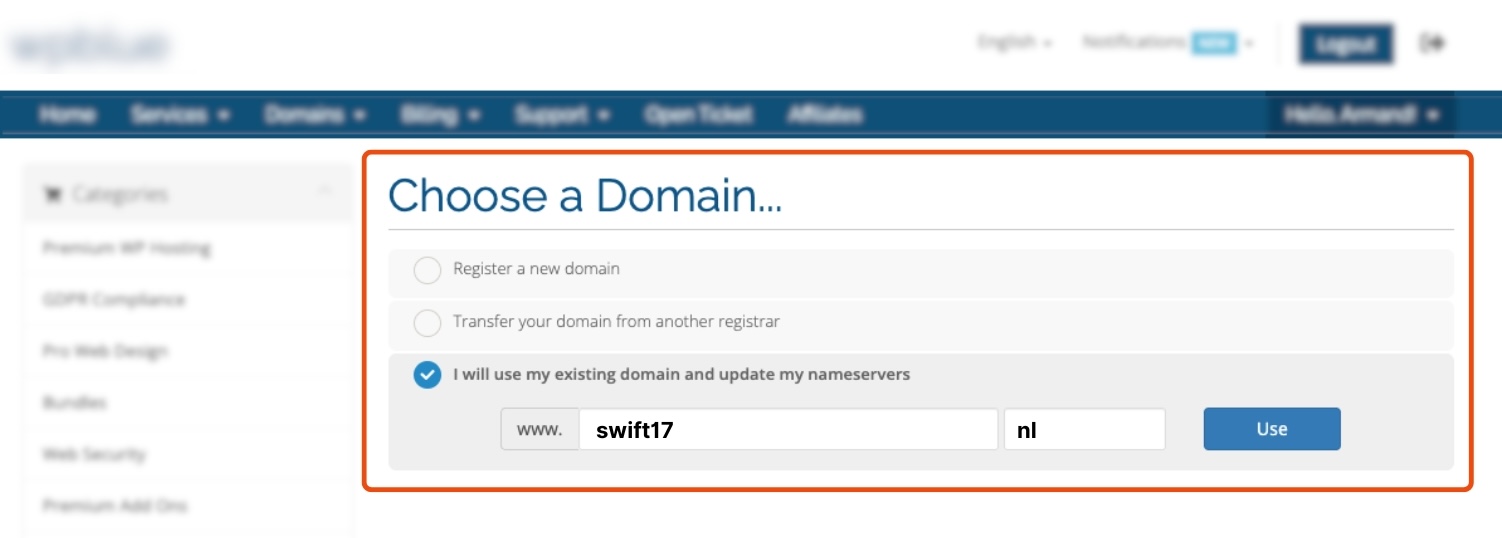
Domain Configuration
For the smoothest user experience, it’s recommended to enable domain registration and integrate a domain registrar into your WHMCS system. This allows automatic domain registration or transfer alongside the hosting product. In the example screenshots, the customer selected "Use Own Domain" with swift17.nl. If domain registration isn’t enabled, the module defaults to a Pressable staging domain.
Module Automation Settings
The timing of site provisioning depends on the automation settings you configure during product setup. You can choose one of the following options:
- Automatically setup the product as soon as an order is placed
Provisioning starts immediately, regardless of payment status. - Automatically setup the product as soon as the first payment is received
Provisioning begins only after payment confirmation (recommended for security). - Automatically setup the product when you manually accept a pending order
Provisioning requires your manual approval. - Do not automatically setup this product
Disables automation, requiring manual provisioning.
Once the customer inputs the required details (Website Name, Website Email, Website Username, PHP Version, and Data Center Selection) and the order is placed, the module will proceed based on your chosen setting. For example, if you’ve selected Automatically setup the product as soon as the first payment is received, provisioning begins after payment is confirmed.
Managing the Service Post-Purchase
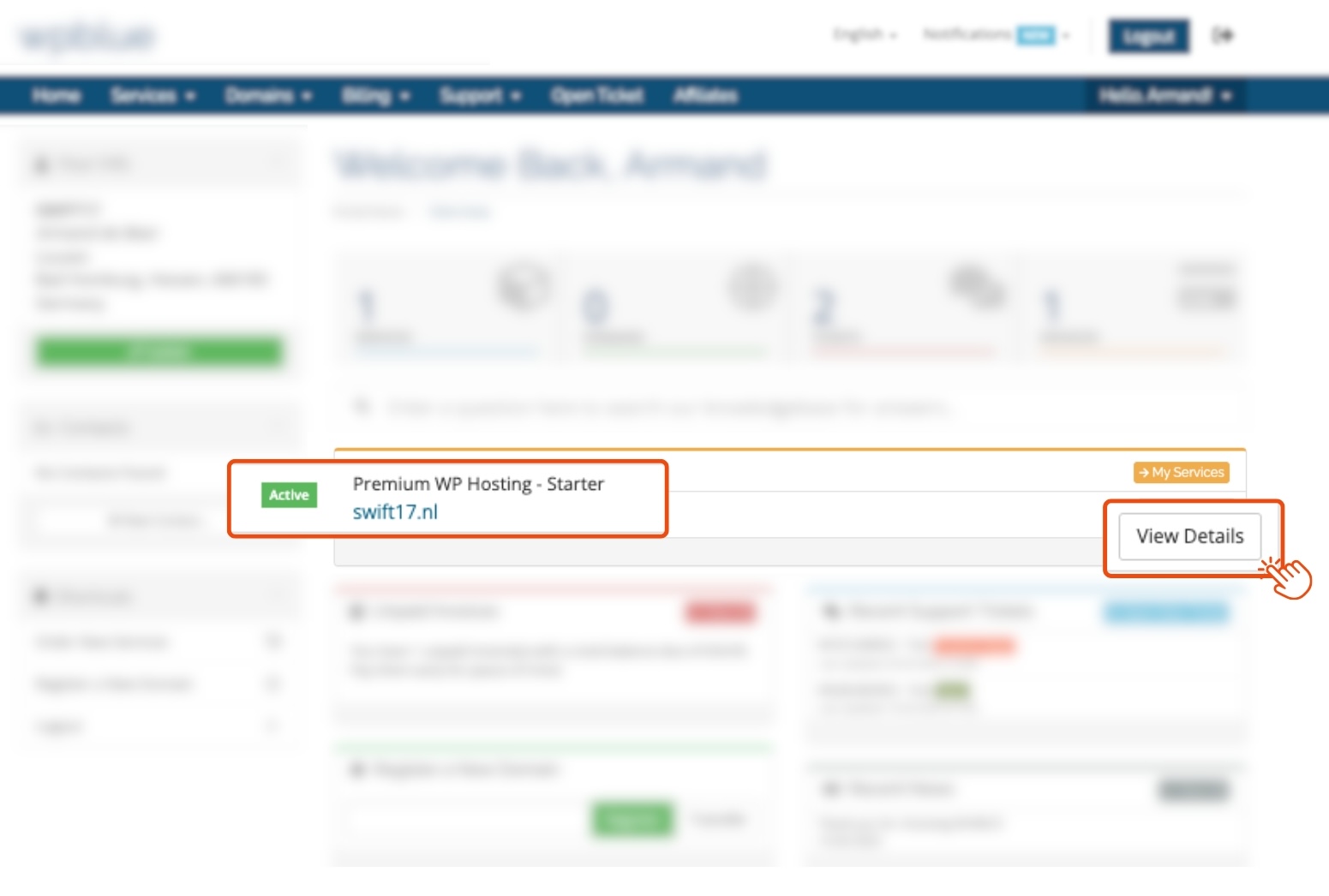
After the order is processed and the site is provisioned, the customer can view and manage their service in the WHMCS client area under the "Services" section. They can click "View Details" to access the service management interface. Whether you choose to brand it as Pressable or keep it fully white-labeled is up to your preference.
Service Overview Page
The service overview page provides key information about the customer’s hosting service, such as:
- Service Title: [PRODUCT CATEGORY] - [SERVICE NAME] (Active)
- Name: [WEBSITE NAME]
- Domain: [DOMAIN NAME]
- Registration Date: [REGISTRATION DATE]
- Next Due Date: [NEXT DUE DATE]
- Recurring Amount: [AMOUNT]
- Billing Cycle: [CYCLE]
- Payment Method: [PAYMENT METHOD]
- Status: [STATUS]
- Performance Metrics
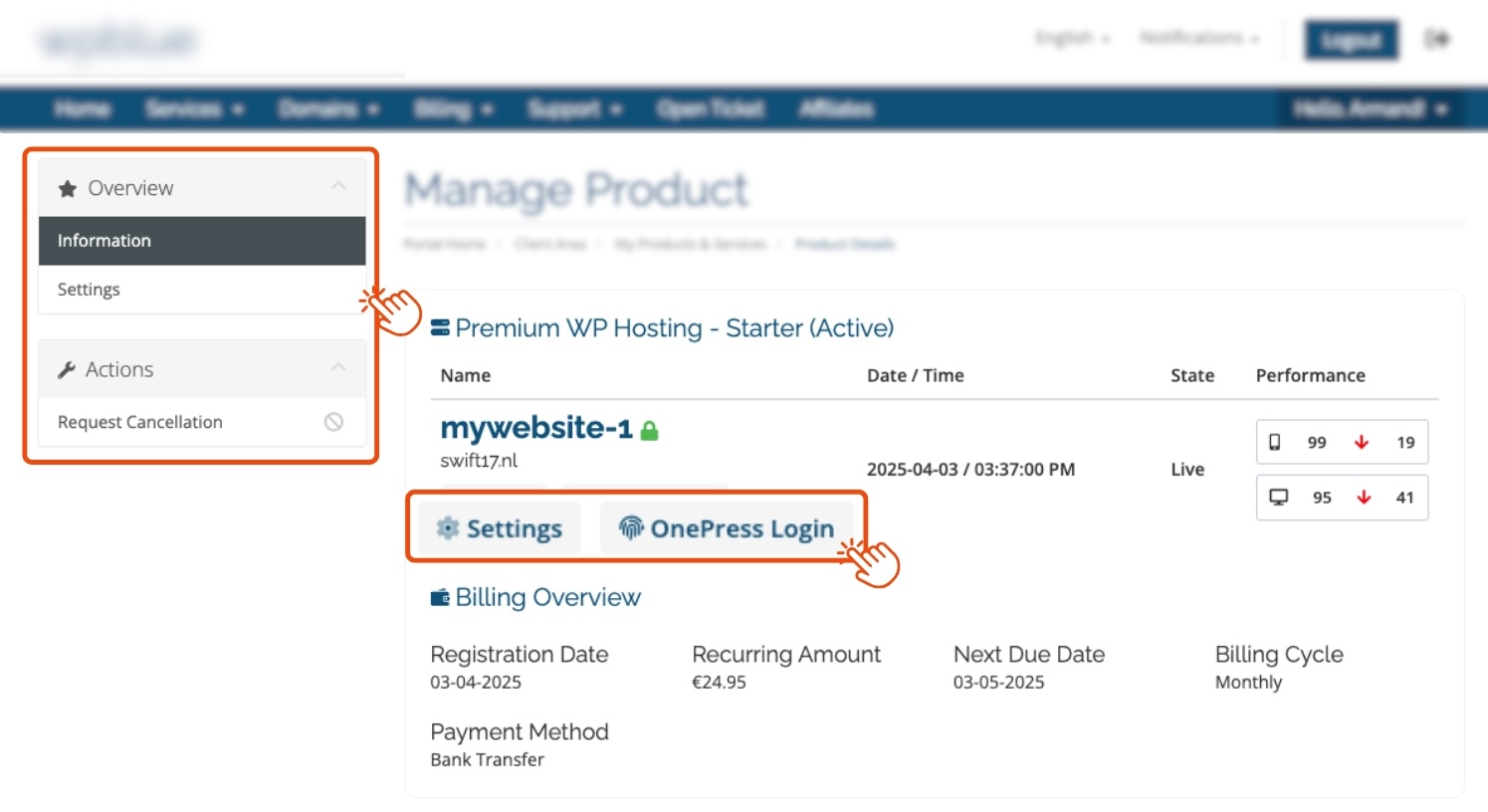
From this page, customers can:
- OnePress Login: Log directly into the WordPress admin dashboard (requires the domain to be pointed to Pressable’s A records and SSL auto-provisioned).
- Settings: Access advanced site management options.
- Request Cancellation: Submit a cancellation request, which opens a support ticket in your WHMCS environment.
Note: OnePress Login requires the OnePress plugin to be active on the WordPress site (automatically enabled by the module). If issues occur, ensure the plugin is active or contact Pressable Support for assistance with SSL or provisioning problems.
Site Management Features
Clicking Settings takes the customer to a detailed management interface, pulling real-time data from Pressable. The interface is divided into the following sections:
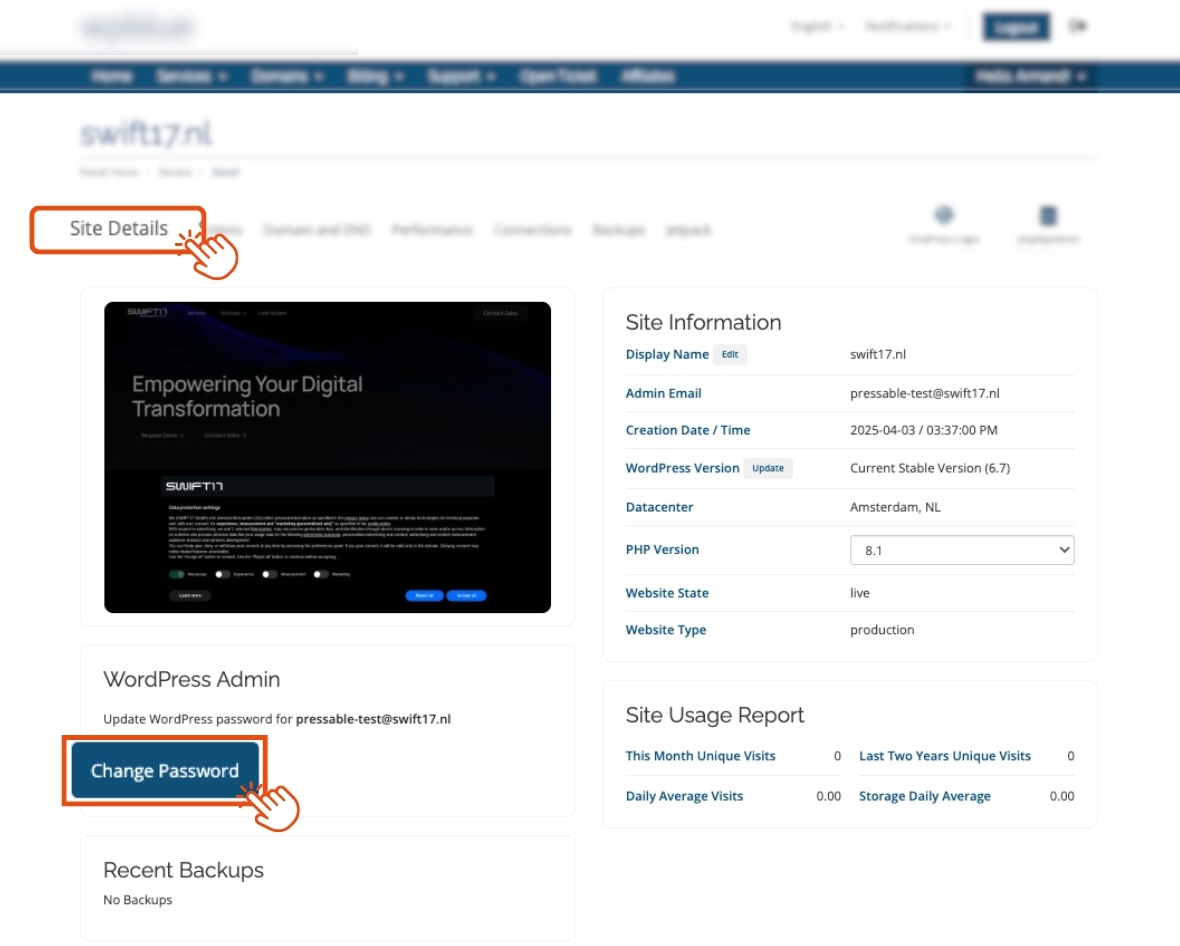
1. Site Details
- Displays a screenshot of the site’s homepage (updated from Pressable).
- Shows site information:
- Display Name
- Admin Email
- Creation Date/Time
- WordPress Version
- Data Center
- PHP Version
- Website State
- Website Type
- Editable options:
- Change the Display Name
- Check for WordPress updates
- Switch PHP versions
- Reset the WordPress admin password via the Change Password button (triggers a pop-up for entering a new password).
- Displays Site Usage Reports with the following statistics:
- This Month Unique Visits
- Daily Average Visits
- Last Two Years Unique Visits
- Storage Daily Average
- Recent Backups Taken

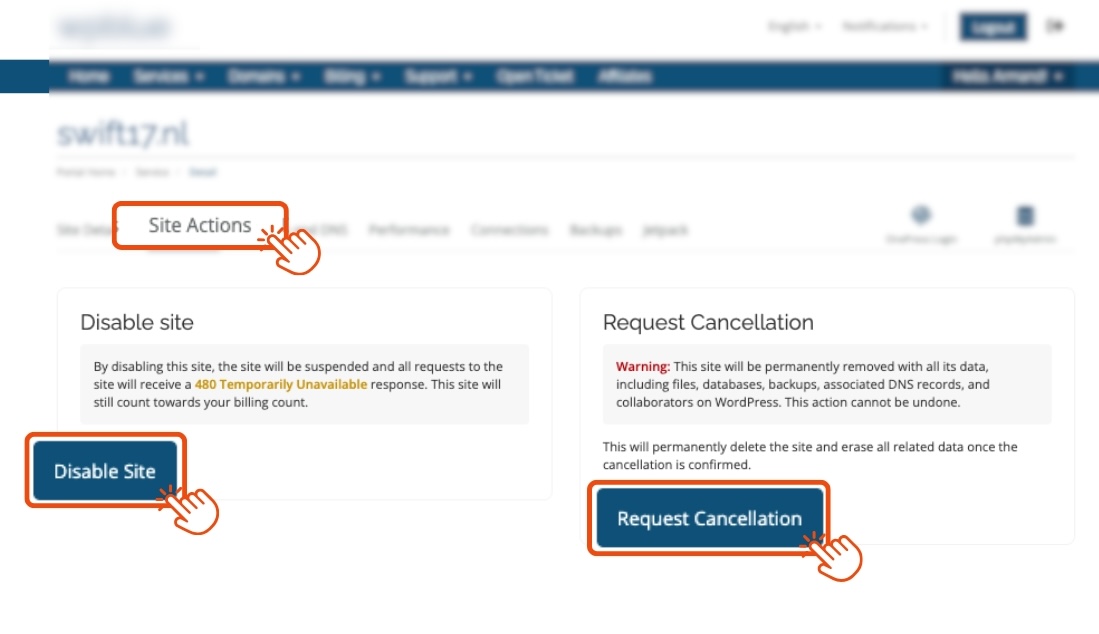
2. Site Actions
- Disable Website: Temporarily deactivates the site (billing continues per Pressable’s policies).
- Request Cancellation: Initiates the cancellation process, requiring manual intervention.
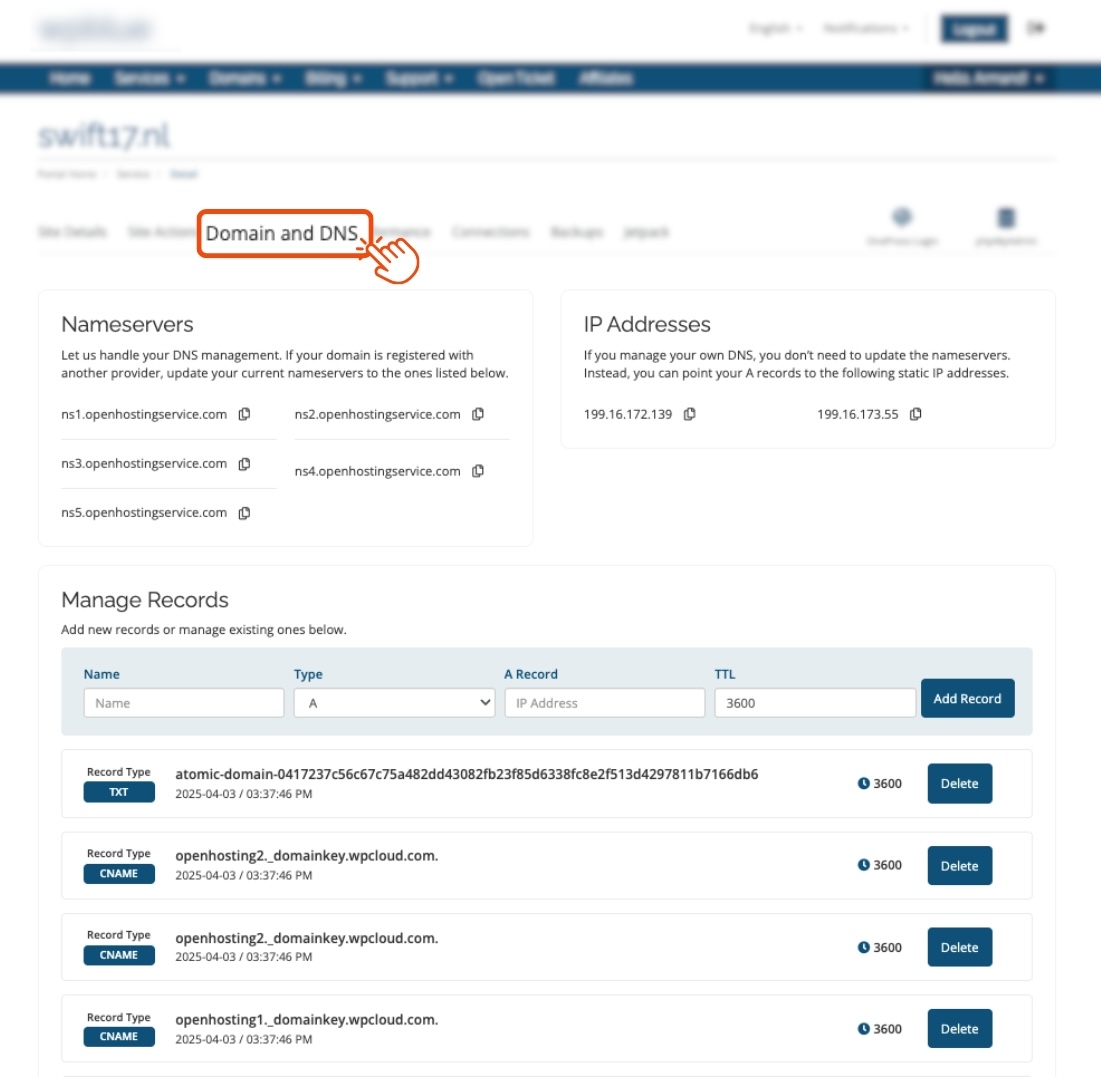
3. Domain & DNS
- Displays:
- Nameservers
- A Records (IP addresses assigned by Pressable)
- Manage Records: Allows customers to add/edit DNS records (A, CNAME, MX, PTR, SRV, TXT) using Pressable’s DNS service.
Note: If custom nameservers are configured (see Configuring Custom Nameservers in PressWHMCS), the "Manage Records" section is hidden, showing only nameservers and A records.
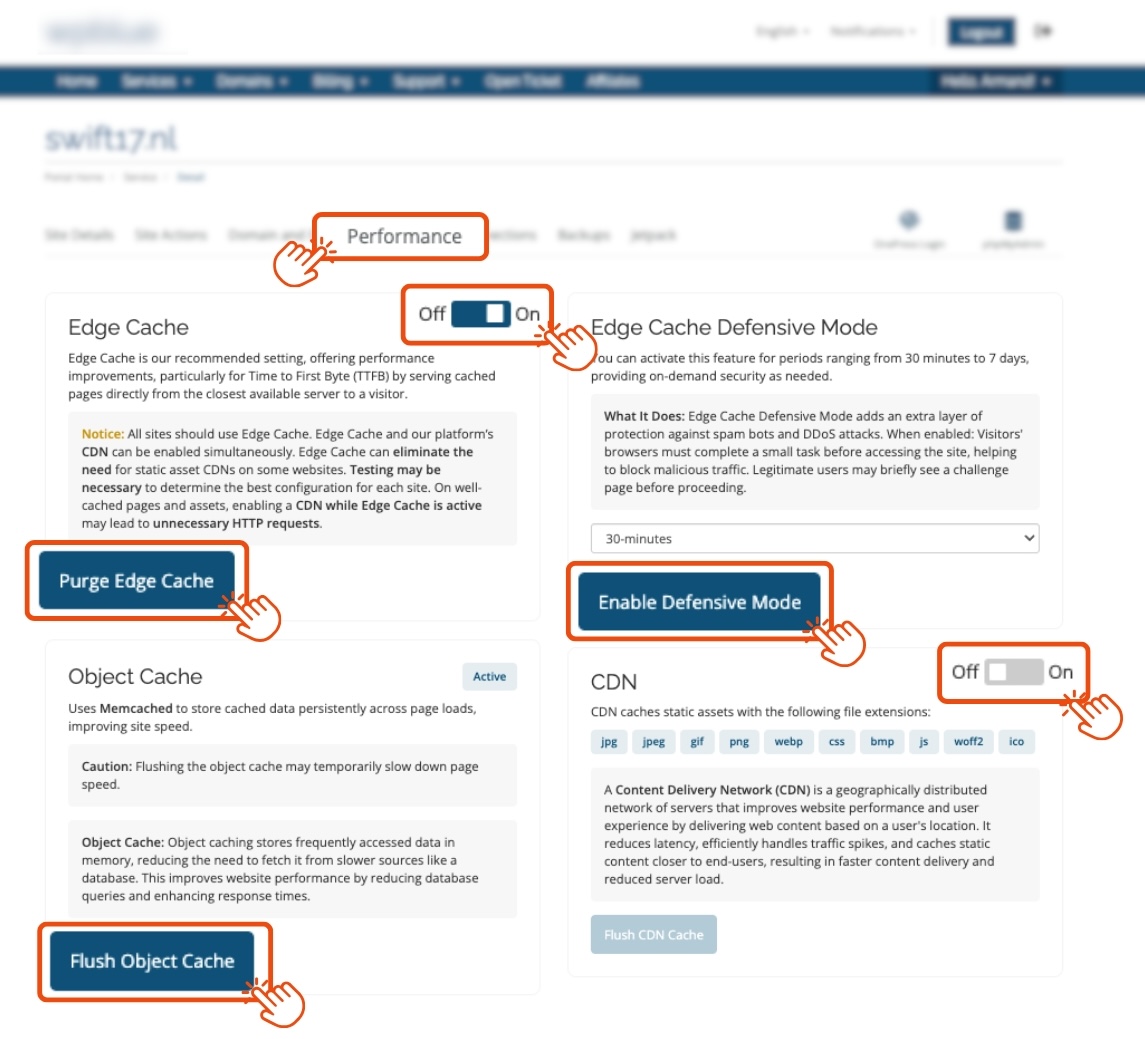
4. Performance
- Edge Cache: Enable, disable, or purge.
- Defensive Mode: Activate for a set period to enhance security.
- Object Cache: Flush as needed.
- CDN: Toggle Pressable’s CDN on/off and flush the cache.
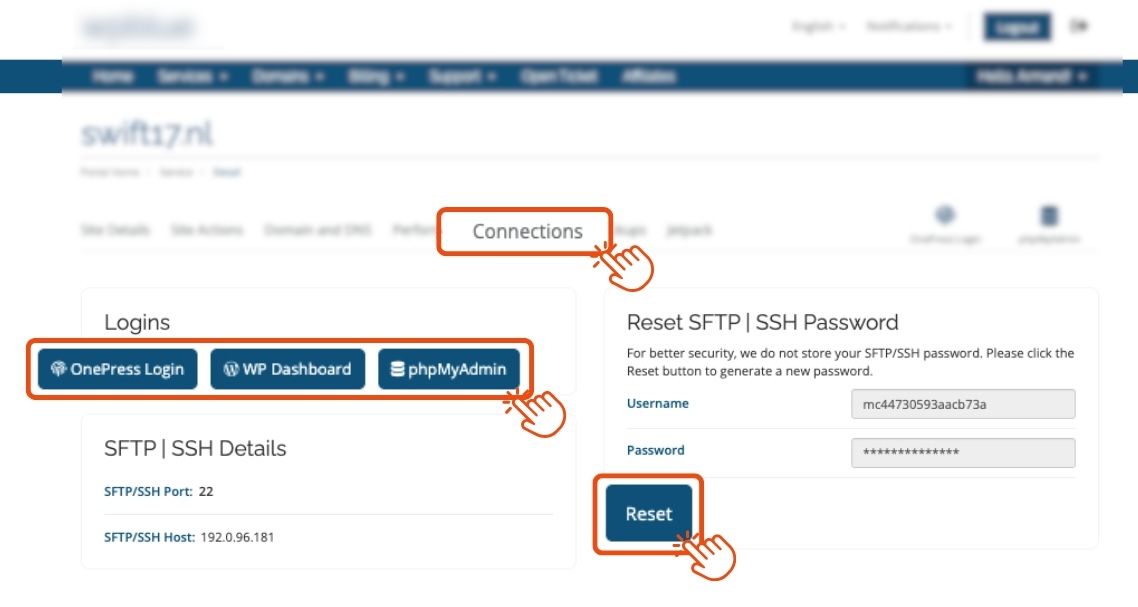
5. Connections
- Logins:
- OnePress Login (direct WordPress admin access)
- WP Dashboard (alternative login if OnePress is disabled)
- phpMyAdmin (database access)
- SFTP & SSH Details: Credentials for connecting via tools like FileZilla.
- Reset SFTP Password: Update SFTP credentials if required.
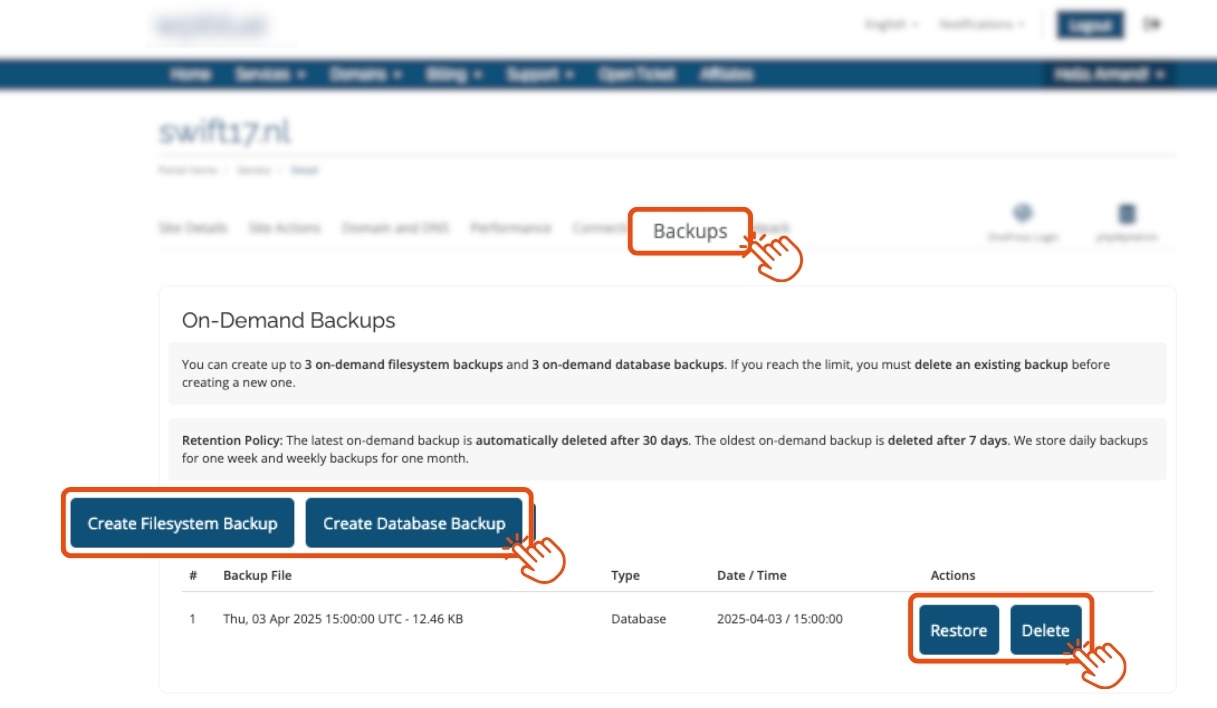
6. Backups
- Create and restore filesystem and database backups.
- Note: Backups cannot be downloaded directly; arrange this via your Pressable dashboard if needed. Pressable’s backup policies apply.
7. Jetpack
- View and copy the Jetpack license.
- Reset the license if necessary.
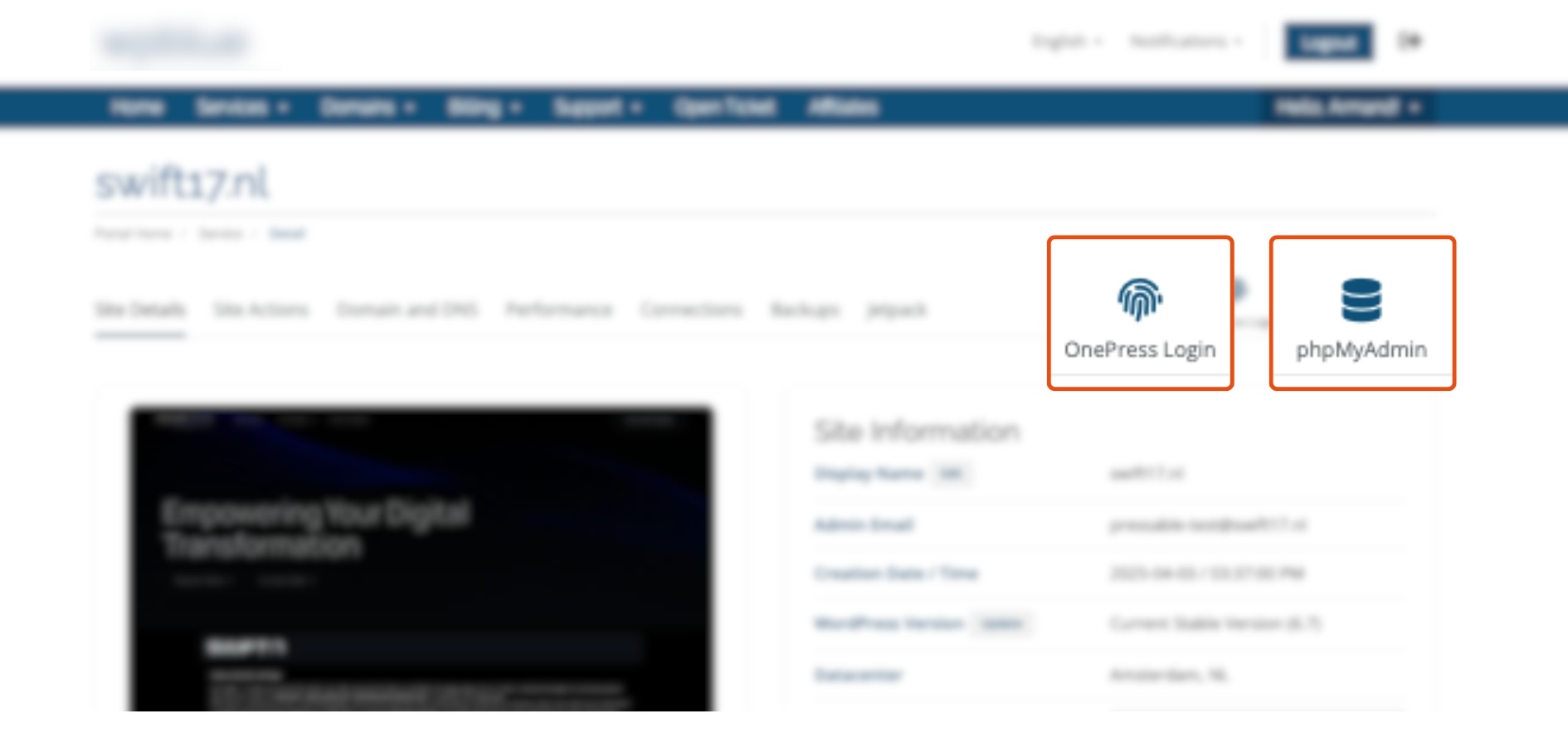
8. OnePress Login & phpMyAdmin
- OnePress Login: Direct WordPress admin access.
- phpMyAdmin: Access the database management tool.
Important Notes
- Unique Website Names: The module ensures uniqueness by appending digits to duplicate names (e.g., mywebsite-123).
- Domain Setup: Integrate a registrar for automatic domain handling; otherwise, a staging domain is used.
- SSL & OnePress Login: The domain must point to Pressable’s A records for SSL auto-provisioning and OnePress Login to work.
- Theme Compatibility: Works with most themes (e.g., Lagom). Request styling customizations via PressWHMCS Support.
Troubleshooting
- OnePress Login Fails: Verify the plugin is active in Pressable and clear browser cookies.
- DNS Management Hidden: Occurs if custom nameservers are enabled.
- Backup Downloads: Not available directly; use the Pressable dashboard.
- Need Assistance?: Contact PressWHMCS Support.
This guide covers the full PressWHMCS workflow, empowering you and your customers to order and manage hosting services efficiently. For additional support or customization, reach out to our team!