How to Find Your Pressable Client ID and Secret
To configure the PressWHMCS module, you’ll need an active Pressable account and the ability to generate API keys. This guide provides step-by-step instructions to locate your Pressable Client ID and Secret, ensuring you have everything set up for a seamless integration.
Prerequisites
Before you begin, confirm that you meet these requirements:
- Valid Pressable Account: You must have an active Pressable account. If you don’t have one, sign up here.
- Multiple Site Hosting Capability: Your account must support hosting multiple sites, not just a single site. Check or upgrade your plan at Pressable Plans.
- Correct User Permissions: You need permissions to generate API keys.
Note: If these conditions aren’t met, you may face issues during setup. Verify your account status before proceeding.
Step 1: Log in to Your Pressable Account
- Access Your Dashboard:
- Go to the Pressable website and log in with your account credentials.
- If you encounter login issues, reset your password at Pressable Password Reset.
Step 2: Navigate to API Applications
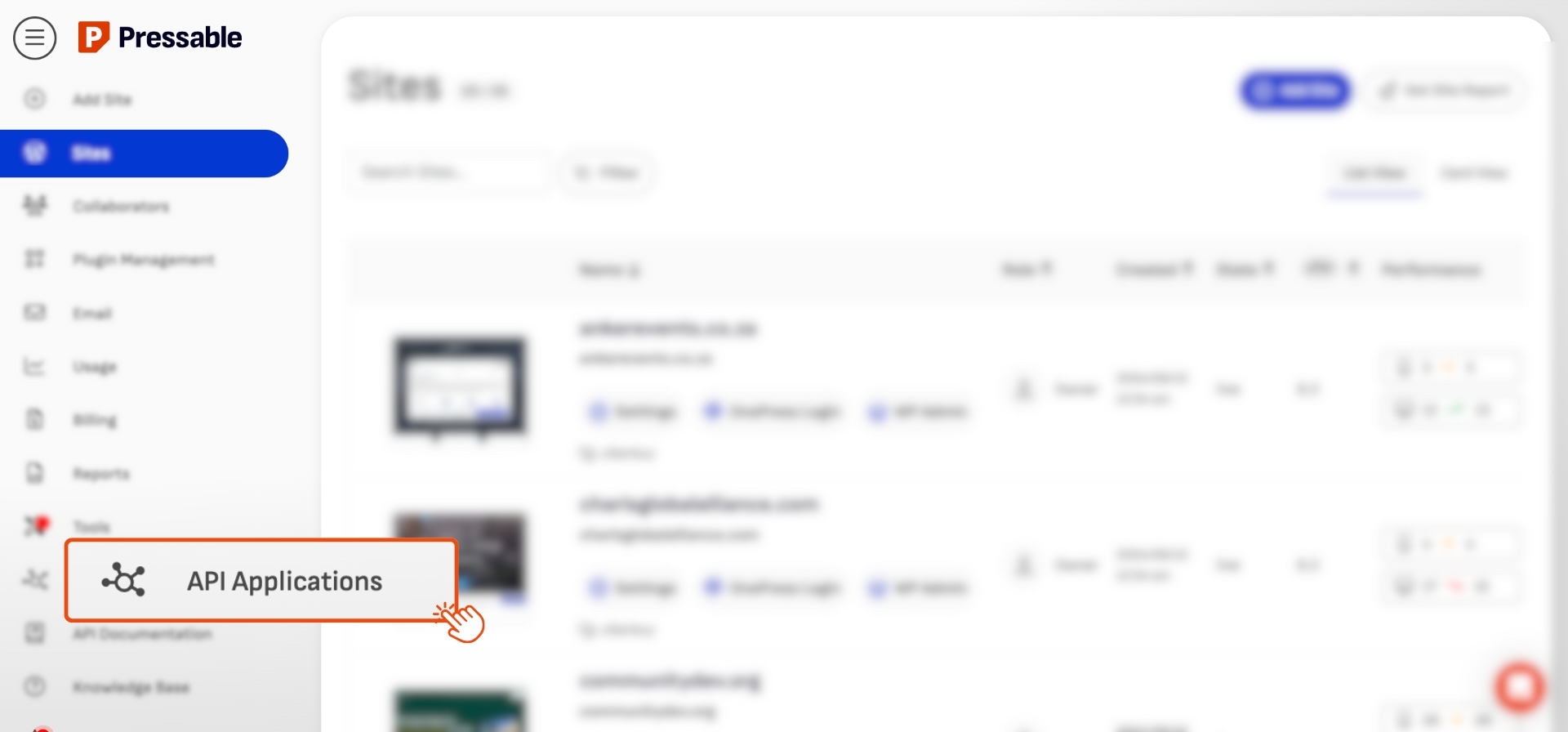
- Find the API Applications Section:
- After logging in, locate the API Applications section in the main dashboard.
- This area displays all applications with API access to your Pressable account.
Tip: If you manage multiple WHMCS installations linked to Pressable, we strongly recommend creating a unique API application for each to prevent future conflicts.
Step 3: Create a New API Application
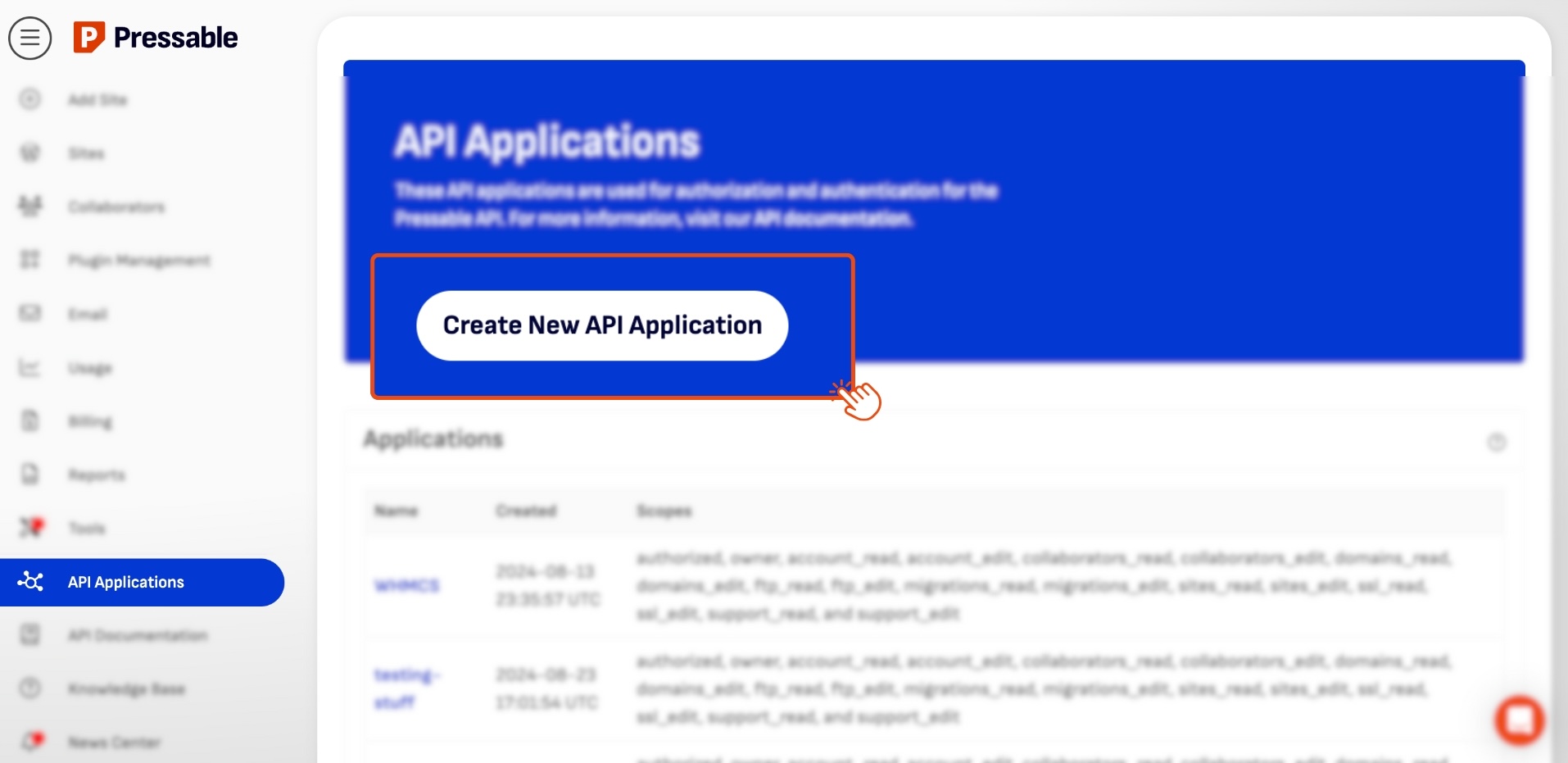
- Start a New Application:
- Click the Create New API Application button.
- Name your application—something recognizable like “WHMCS” or a custom name that reflects its purpose. This is especially helpful if you have multiple PressWHMCS modules across different WHMCS installations.
- Configure Permissions:
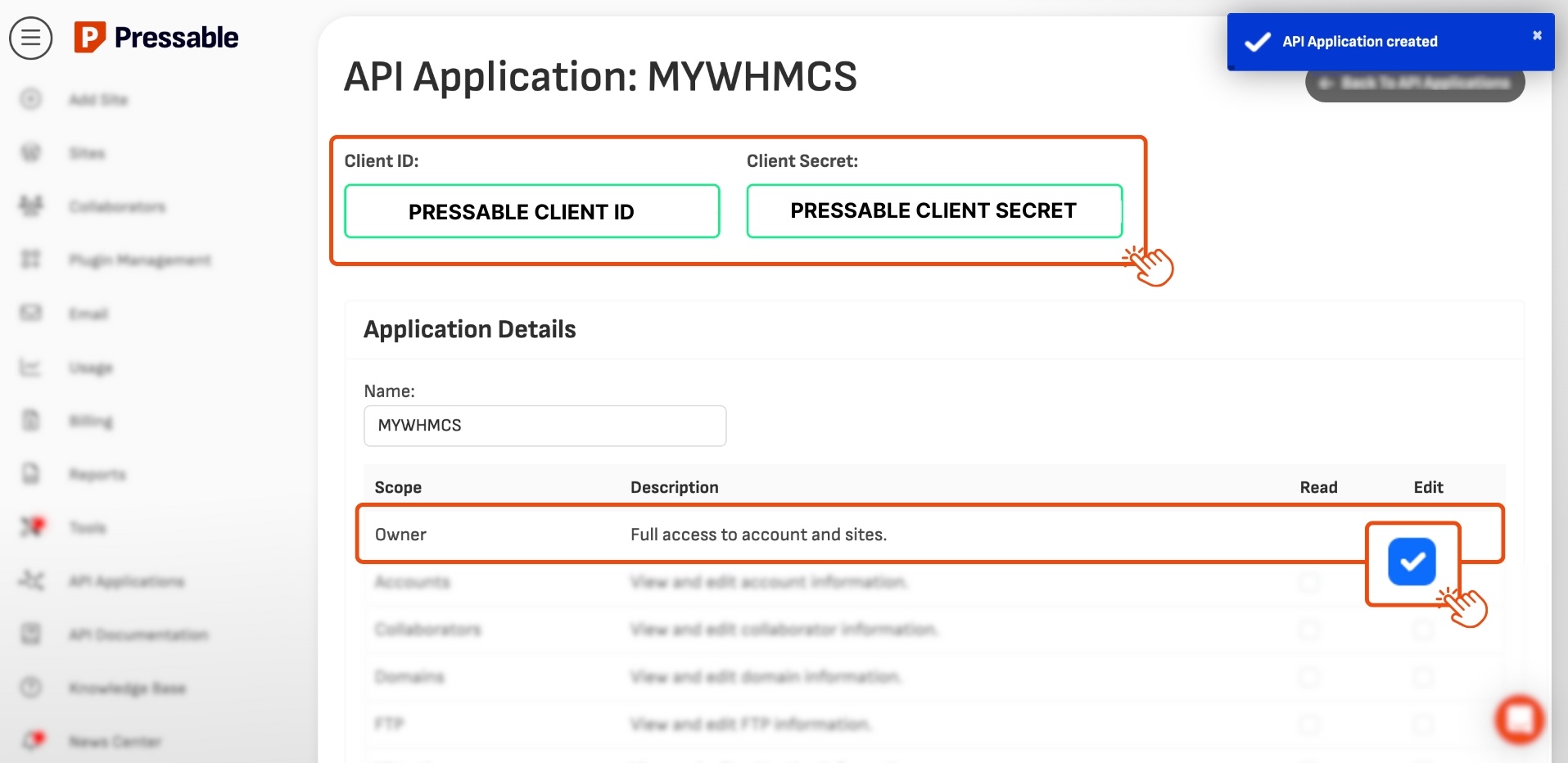
- You’ll see checkboxes for Read and Edit scopes.
- Set the Owner scope to Edit. This permission is essential for enabling full communication between WHMCS and Pressable via the API.
Important: Failing to set the Owner scope to Edit may limit the module’s functionality.
Step 4: Save and Retrieve Your Client ID and Secret
- Save Your Application:
- After naming the application and setting permissions, click Save.
- Pressable will then display your Client ID and Client Secret.
- Secure Your Credentials:
- Copy both the Client ID and Client Secret immediately.
- Store them in a secure environment, such as a password manager, to keep them safe.
Warning: Treat these credentials like passwords—do not share them publicly or with unauthorized individuals.
Step 5: Integrate with PressWHMCS
With your Client ID and Secret ready, you can now configure the PressWHMCS module.
- Next Steps: Follow the installation and activation guide to input these credentials. -> How to Install and Activate PressWHMCS.
Troubleshooting Tips
- Can’t Locate API Applications? Verify you’re logged in with an account that has sufficient permissions.
- Permission Problems? If you can’t set the Owner scope to Edit, contact Pressable support in your account Pressable Support.
- Multiple Installations? Create a separate API application for each WHMCS instance to maintain clarity and security.