Configuring Custom Nameservers in PressWHMCS
Pressable offers exceptional hosting services, including integrated DNS hosting that delivers security, high performance, and low latency. The PressWHMCS module is designed to simplify DNS management for agencies, allowing you to rely fully on Pressable’s infrastructure if desired. However, we’ve built flexibility into the module, giving you the option to use custom nameservers if you prefer to manage DNS through an external provider. This guide walks you through configuring custom nameservers in the PressWHMCS module, including how to enable them, input them correctly, and understand your options.
Why Use Pressable DNS?
Pressable’s built-in DNS hosting provides several advantages:
- Integrated Management: Manage DNS records directly within the PressWHMCS module via the Domain & DNS tab.
- Visibility: View your nameservers and the IP addresses of WordPress sites hosted on Pressable.
- Performance and Security: Benefit from Pressable’s optimized infrastructure for fast and reliable DNS resolution.
The Domain & DNS tab in the module allows you to oversee DNS records, see Pressable’s default nameservers, and manage domain settings—all in one place. However, if you already use a different DNS provider and manage it outside of Pressable or WHMCS, you can configure custom nameservers to suit your workflow.
How to Configure Custom Nameservers
If you want to use your own DNS provider instead of Pressable’s default nameservers, follow these steps to enable and set them up correctly.
Step 1: Access the Module Configuration
- Log in to WHMCS Admin:
- Access your WHMCS Admin area by visiting https://yourdomain.com/admin (replace with your domain).
- Navigate to the Module:
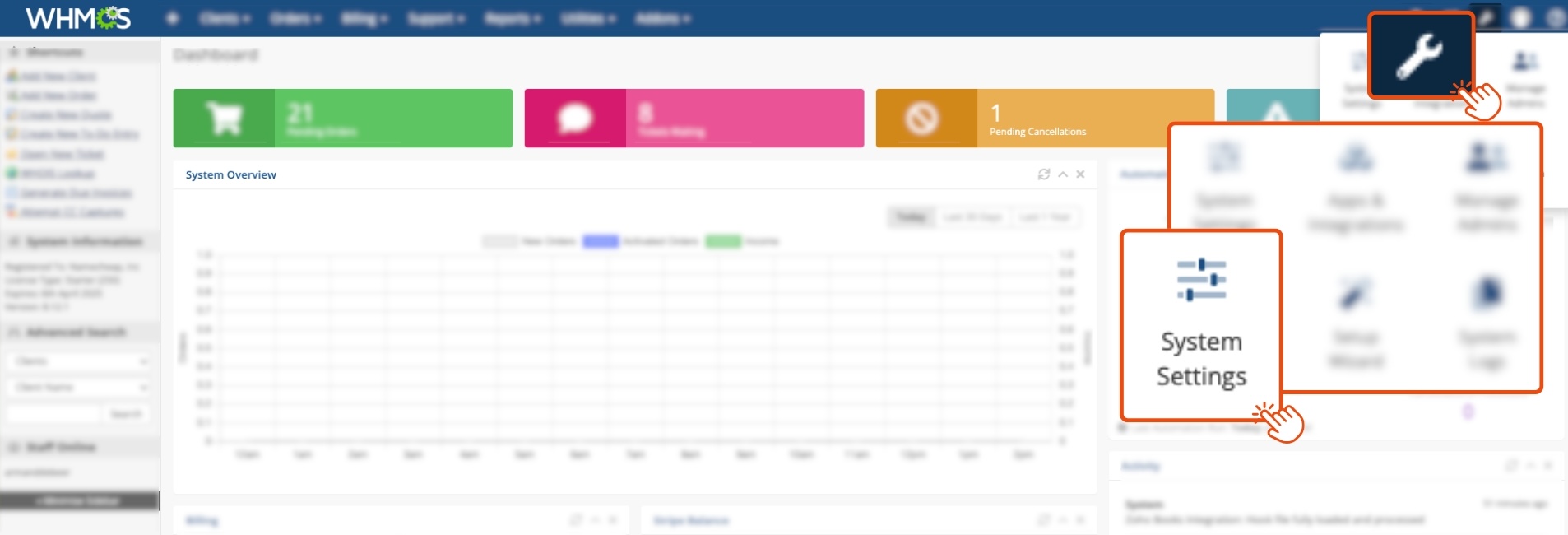
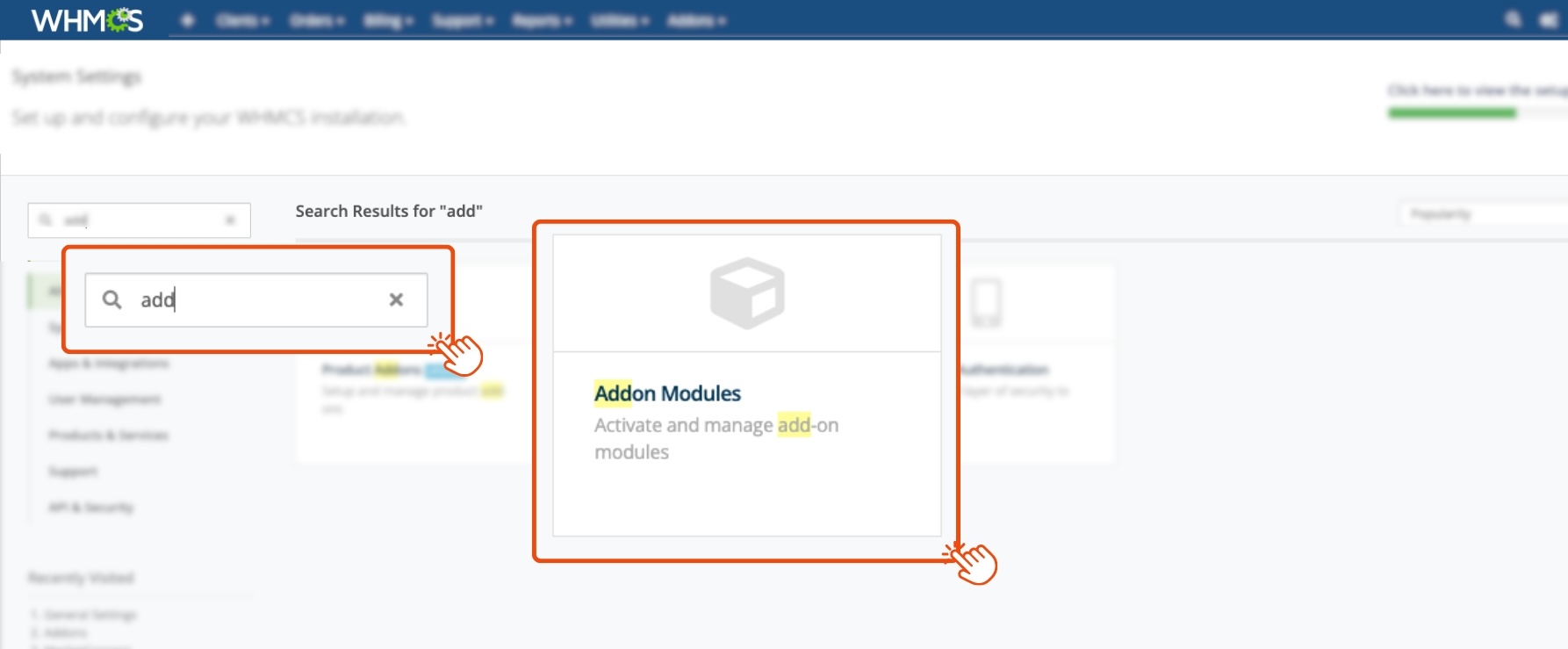
- Go to Configuration (wrench icon) → System Settings → Addon Modules.
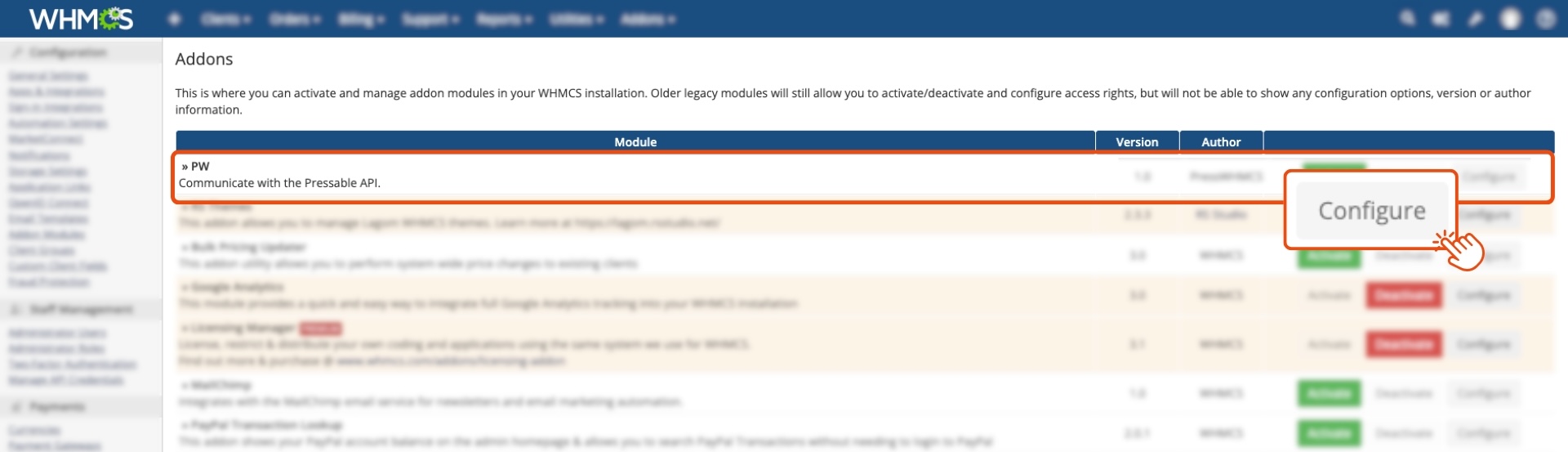
- Locate the PW (PressWHMCS) module in the list.
- Open Configuration:
- Click Configure next to the PW module.
Step 2: Enable Custom Nameservers
- Activate the Option:
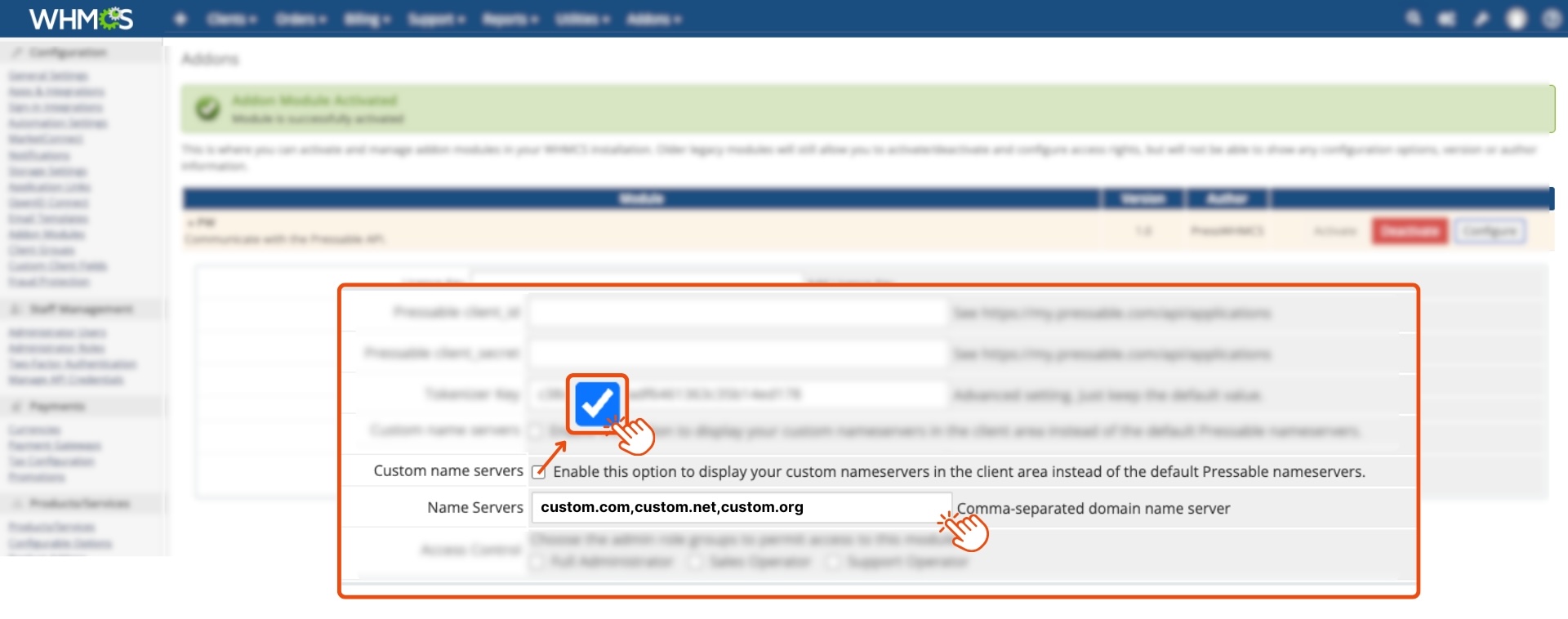
- Find the setting labeled Enable this option to display your custom nameservers in the client area instead of the default Pressable nameservers.
- Check this box to enable custom nameservers. This disables Pressable’s DNS management within the module, limiting it to displaying only the A records for Pressable-hosted sites.
- Understand the Impact:
- Once enabled, your custom nameservers will appear in the Domain & DNS section of the client area instead of Pressable’s defaults.
Step 3: Enter Your Custom Nameservers
- Input the Nameservers:
- In the Nameservers field that appears after enabling the option, enter your custom nameservers.
- Formatting Rule: Type them with no spaces and separated by commas. For example:
ns1.example.com,ns2.example.com,ns3.example.com - This format ensures the nameservers display correctly in the Domain & DNS section of the module.
- Avoid Errors:
- Do not add spaces (e.g., ns1.example.com, ns2.example.com) or use other separators (e.g., semicolons). Incorrect formatting may prevent the nameservers from appearing properly.
Step 4: Save and Verify
- Save the Changes:
- Click Save Changes to apply the settings.
- Check the Client Area:
- Navigate to the Domain & DNS section in the client area to confirm your custom nameservers (e.g., ns1.example.com, ns2.example.com, ns3.example.com) are listed as expected.
Note: This is a system-wide setting, applying to all sites managed by the PressWHMCS module. Per-site nameserver customization is not currently supported.
Step 5: Update WHMCS Nameserver Settings (Optional)
To ensure consistency across your WHMCS setup:
- Set Default Nameservers:
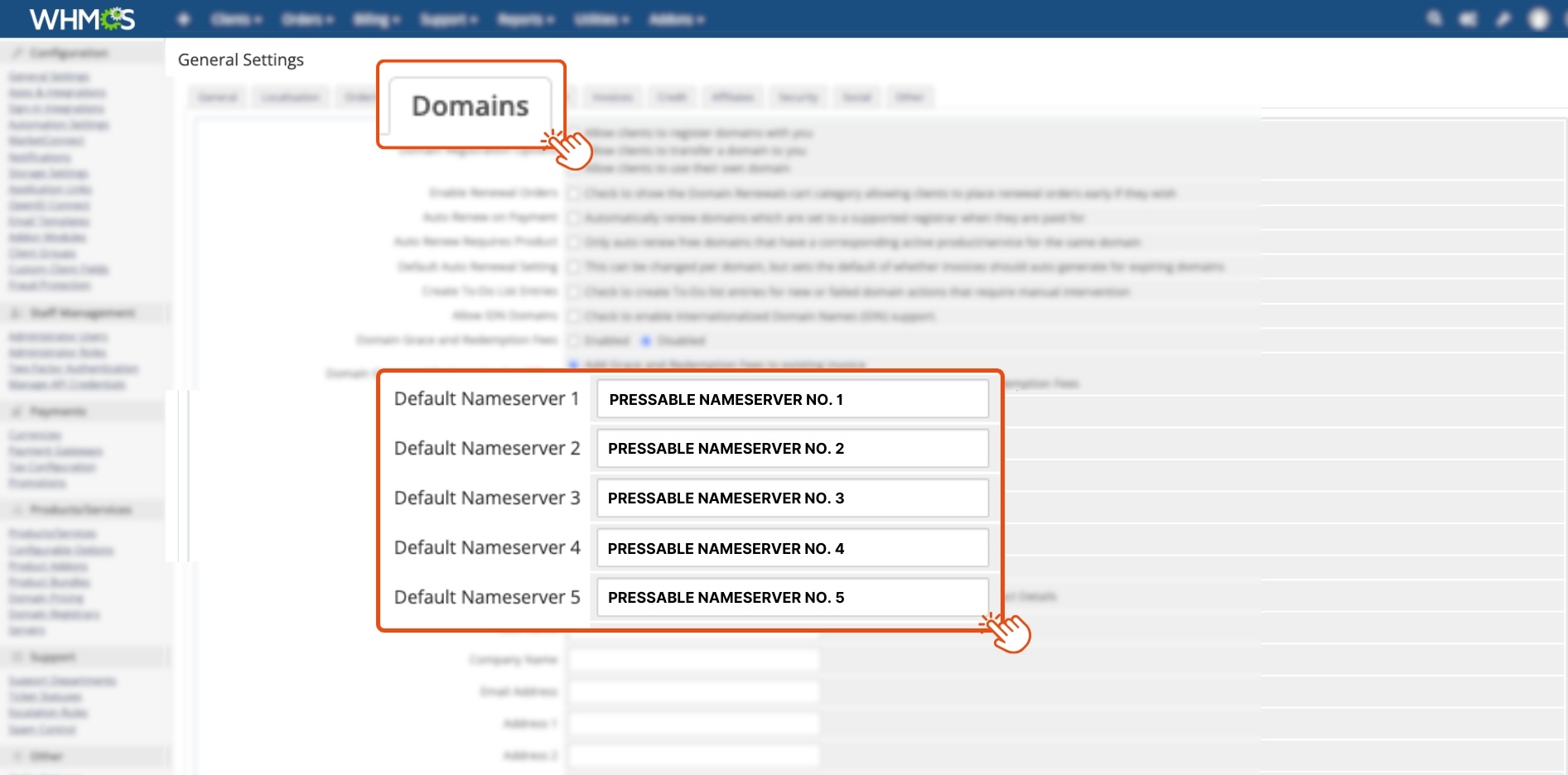
- Go to Configuration → System Settings → General Settings → Domains tab.
- Enter your custom nameservers (e.g., ns1.example.com, ns2.example.com) in the Default Nameservers fields using the same comma-separated format.
- Apply to Domains:
- Update the domain settings in WHMCS to reflect these nameservers, ensuring they’re the default for new orders or transfers.
If you use an external DNS provider, manage your DNS records there as the module will no longer handle DNS beyond showing A records.
Using Pressable’s Default Nameservers
If you prefer to leverage Pressable’s DNS hosting and default nameservers, here’s how to keep things simple:
Step 1: Keep Custom Nameservers Disabled
- Leave the Enable Custom Nameservers option unchecked in the PW module configuration.
- This retains Pressable’s DNS management within the module, allowing you to use the Domain & DNS tab to manage records and view nameservers.
Step 2: Set Pressable Nameservers in WHMCS
- Update General Settings:
- Go to Configuration → System Settings → General Settings → Domains tab.
- Enter Pressable’s default nameservers in the Default Nameservers fields.
- Check Domain Configurations:
- Ensure all domains managed through Pressable use these nameservers by updating the domain sections as needed.
Recommendation: Sticking with Pressable’s DNS is ideal for agencies seeking a streamlined, high-performance solution fully integrated with WHMCS.
Key Points to Understand
- System-Wide Scope: Custom nameservers apply globally within the PressWHMCS module, not per website.
- External DNS Management: When custom nameservers are enabled, DNS records must be managed through your external provider. The module will only display A records for Pressable-hosted sites in the Domain & DNS section.
- Correct Formatting: Use ns1.example.com,ns2.example.com (no spaces, comma-separated) to ensure proper display in the client area.
- Pressable DNS Benefits: Keeping the default setup simplifies management and leverages Pressable’s optimized infrastructure.
Troubleshooting Tips
- Nameservers Not Showing? Verify you’ve entered them without spaces and with commas (e.g., ns1.example.com,ns2.example.com). Re-save and check the Domain & DNS section.
- DNS Management Missing? If custom nameservers are enabled, DNS tools are disabled in the module—use your external provider instead.
Final Thoughts
The PressWHMCS module offers flexibility to suit your DNS preferences. Use custom nameservers by enabling the option and entering them correctly (e.g., ns1.example.com,ns2.example.com) to integrate with your existing provider, or stick with Pressable’s default nameservers for a seamless, high-performance experience. Either way, this guide ensures you can configure your setup with confidence. For more details, see How to Install and Activate PressWHMCS.