How to Create a Hosting Product with PressWHMCS
Once you’ve activated and configured the PressWHMCS module (see How to Install and Activate PressWHMCS), you’re ready to create your first hosting product. This product will connect your WHMCS system to Pressable, enabling automatic provisioning of hosting services. Follow these steps to set up a hosting product that integrates seamlessly with PressWHMCS.
Prerequisites
Before proceeding, ensure:
- The PressWHMCS module is installed and activated.
- You have sufficient site capacity in your Pressable account to provision new websites.
- You’re logged into your WHMCS Admin area with appropriate permissions.
Step 1: Create a Product Group
All products in WHMCS must belong to a group. Start by setting up a new product group for your Pressable hosting offerings.
- Navigate to Product/Services:
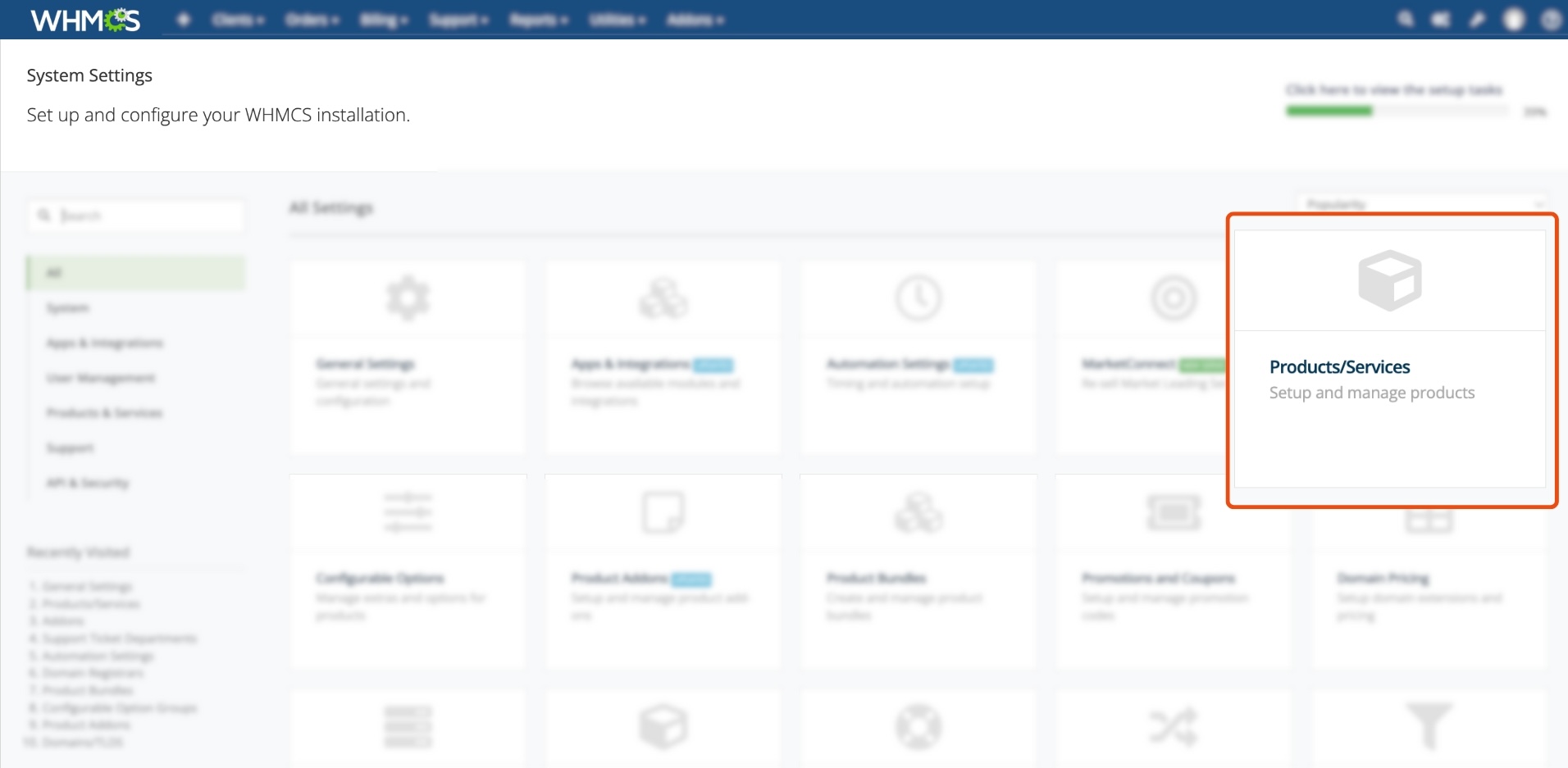
- In the WHMCS Admin area, click the Gear Icon (top right) → System Settings.
- Select Products/Services. You may be prompted to re-enter your password for security.
- Access the Product List:
- You’ll see a list of existing products and services. If none exist, that’s fine—this guide covers starting from scratch.
- Create a New Group:
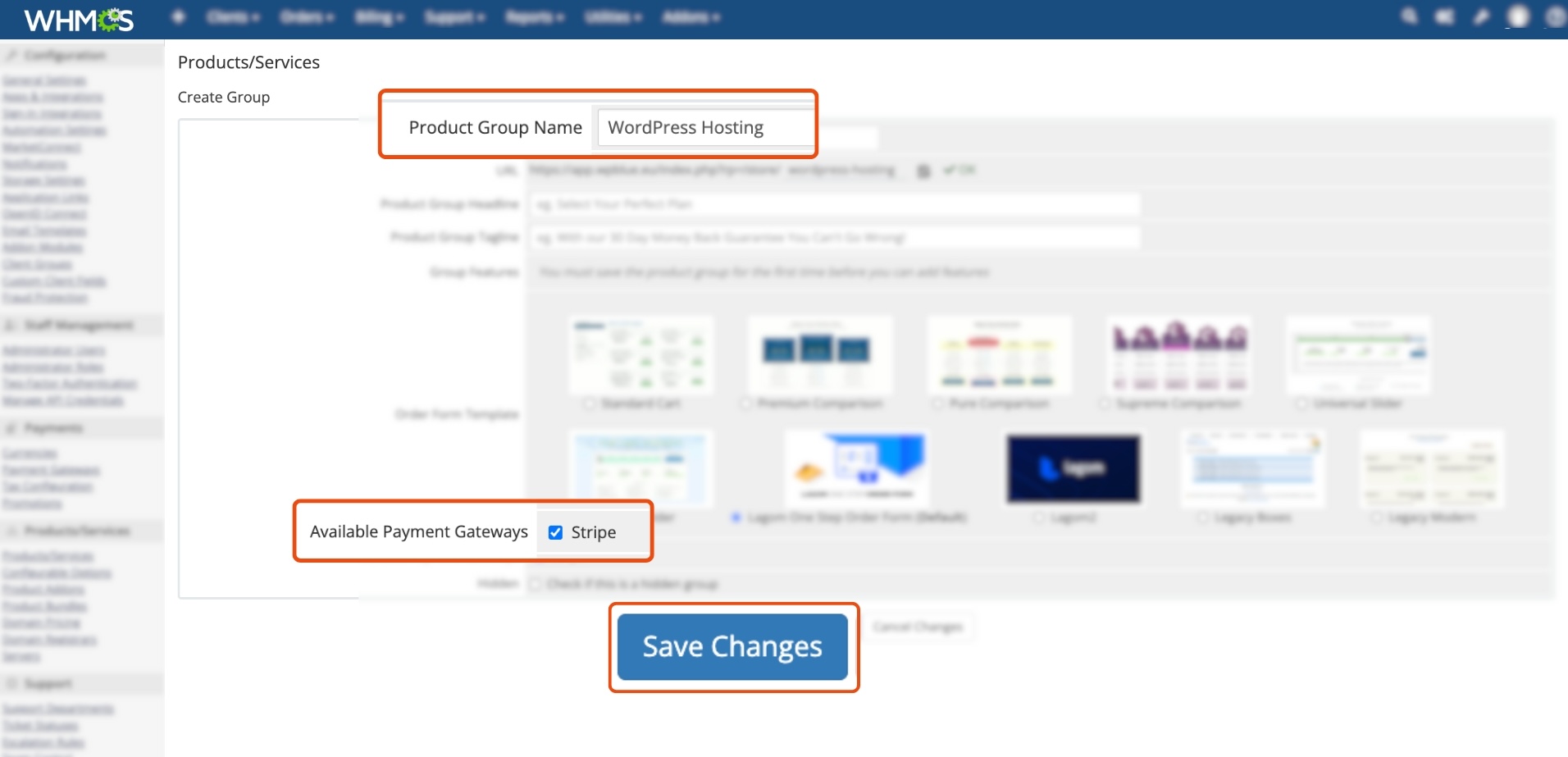
- Click Create New Group.
- Configure the Group:
- Fill in the following fields:
- Product Group Name: E.g., “Pressable Hosting Plans”.
- URL: A slug will auto-generate (e.g., /store/pressable-hosting-plans).
- Product Group Tagline: Optional, if supported by your theme (e.g., “Fast, Secure WordPress Hosting”).
- Group Features: Add highlights like “Powered by Pressable” or “Auto-Provisioned”.
- Order Form Template: Choose the default template supported by your theme. -> Learn more about order form templates.
- Available Payment Gateways: Select the gateways you want this group to use. -> Configure payment gateways.
- Hidden: Check this to hide the group from public view, if desired.
- Click Save Changes.
- Fill in the following fields:
- Return to Products/Services:
- After saving, click Back to Product List or use the left navigation to return.

Step 2: Create a New Hosting Product
With the group created, you can now add a product linked to PressWHMCS.
- Initiate Product Creation:
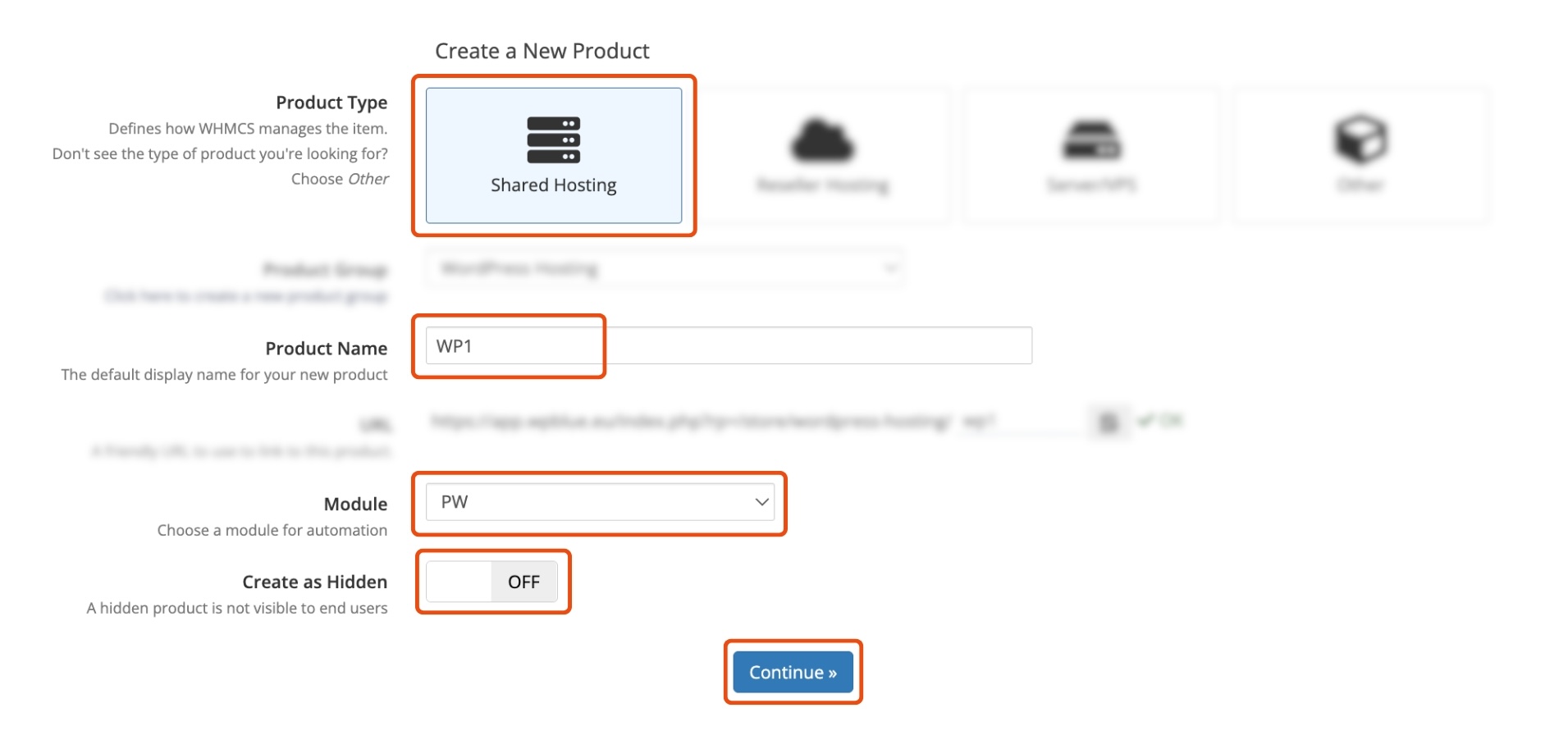
- In Products/Services, click Create New Product.
- Set Basic Product Details:
- Product Type: Select Shared Hosting.
- Product Group: Choose the group you just created (e.g., “Pressable Hosting Plans”).
- Product Name: E.g., “Pressable WordPress Hosting Basic”.
- URL: A purchase link will auto-generate (e.g., /store/pressable-hosting-plans/pressable-wordpress-hosting-basic).
- Select the Module:
- In the Module dropdown, choose PW (under “All Other Modules”).
- Ensure the Enable toggle is on to make the product available for purchase.
- Proceed:
- Click Continue to access the product configuration page.

Step 3: Configure Product Settings
You’ll now fine-tune the product to work with PressWHMCS. Below are the essentials for Pressable integration.
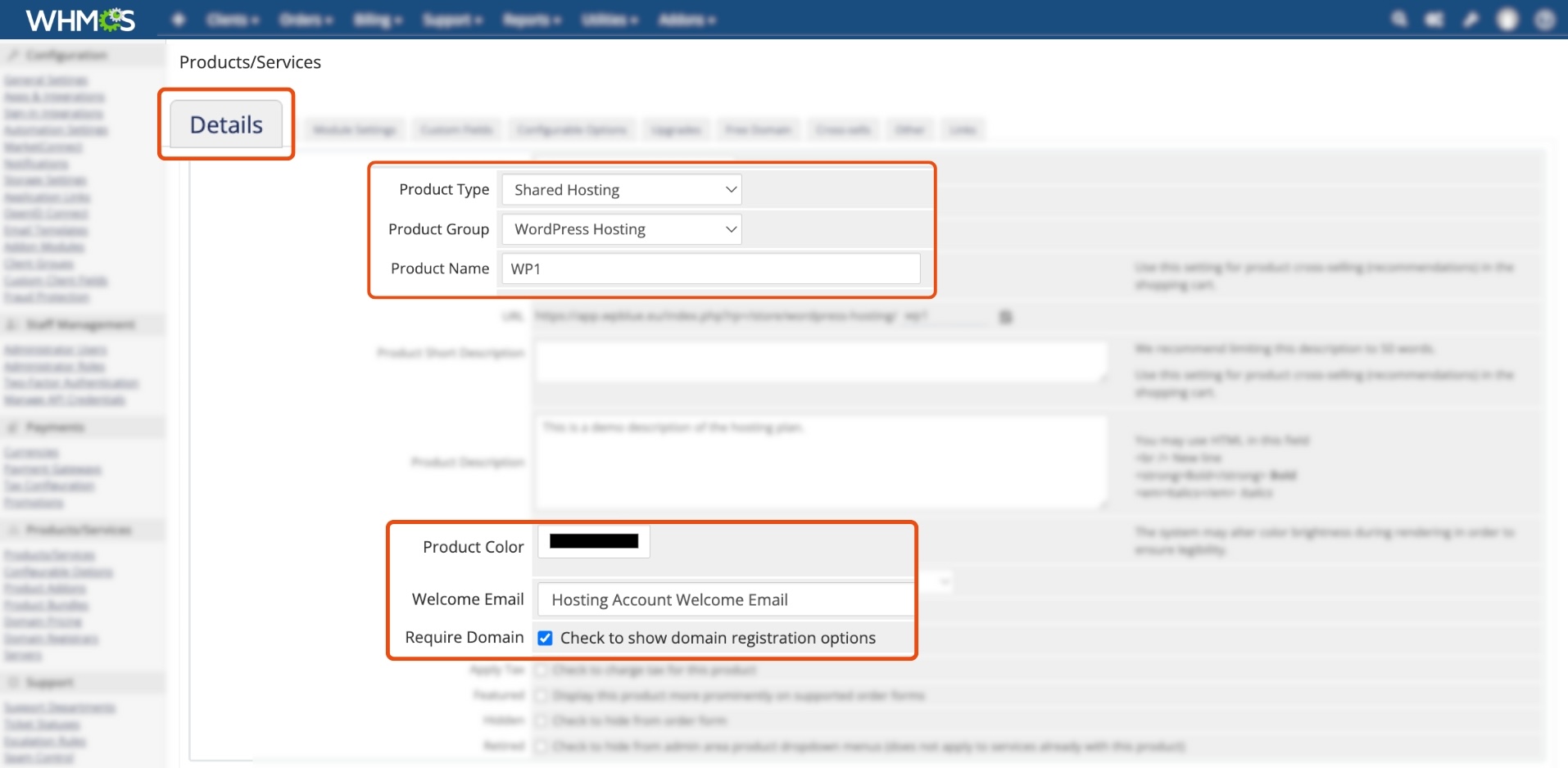
- Details Tab:
- Product Description: Add a description (e.g., “Fast WordPress hosting powered by Pressable”).
- Short Description: Optional, if supported by your theme.
- Product Color: Select a color to match your theme (e.g., black), if applicable.
- Welcome Email:
- Choose the custom email template you created (e.g., “WordPress Login Details”). -> How to Set Up a WordPress Welcome Email.
- Stock Control:
- Ensure Enable Stock Control is unchecked—Pressable capacity is managed via your account, not WHMCS stock.
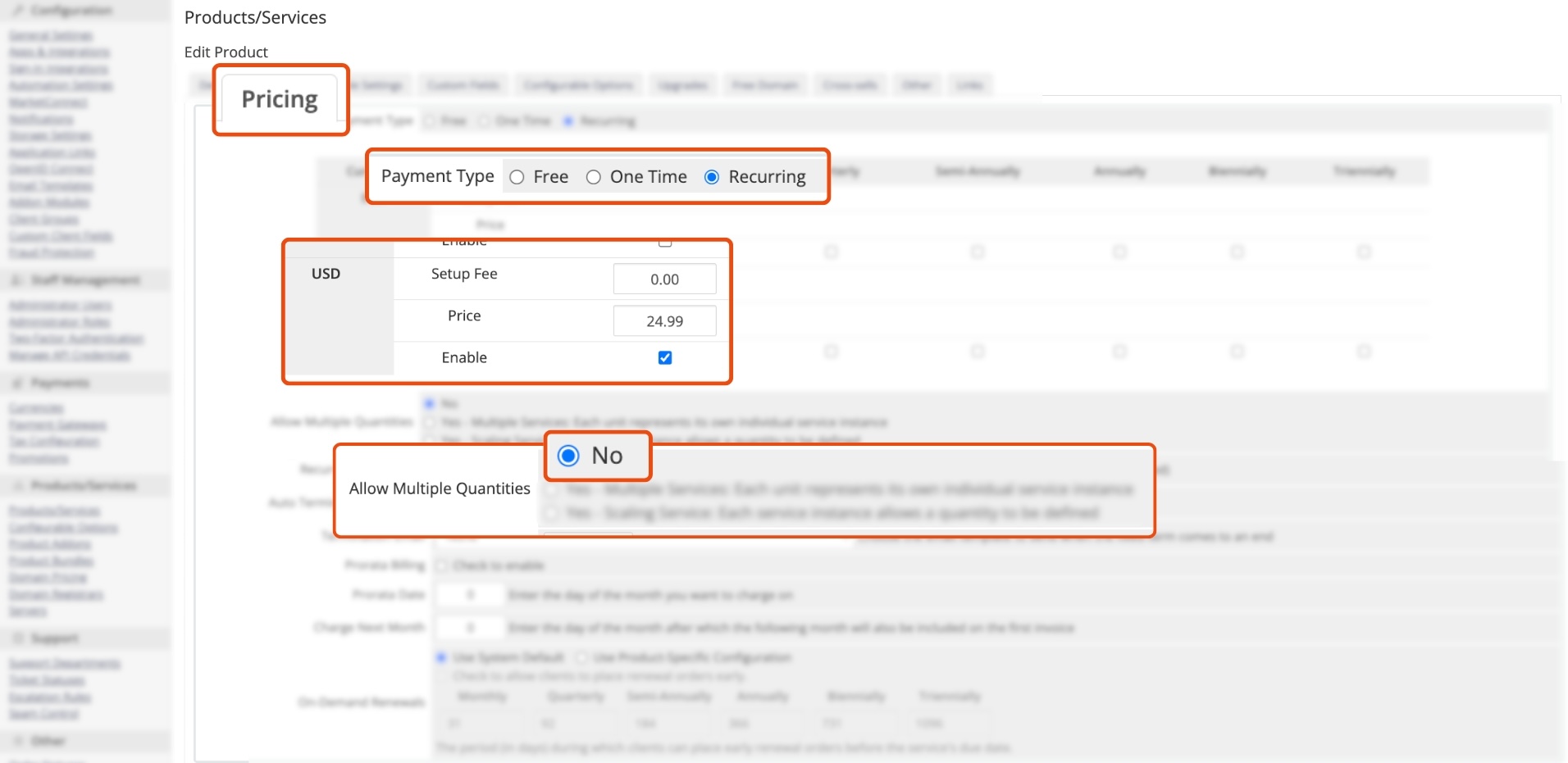
- Pricing Tab:
- Set pricing options (e.g., recurring, free, or one-time). -> Learn about WHMCS pricing options.
- Allow Multiple Quantities: Set to No.
- Pro-Rata Billing: Enable if desired.
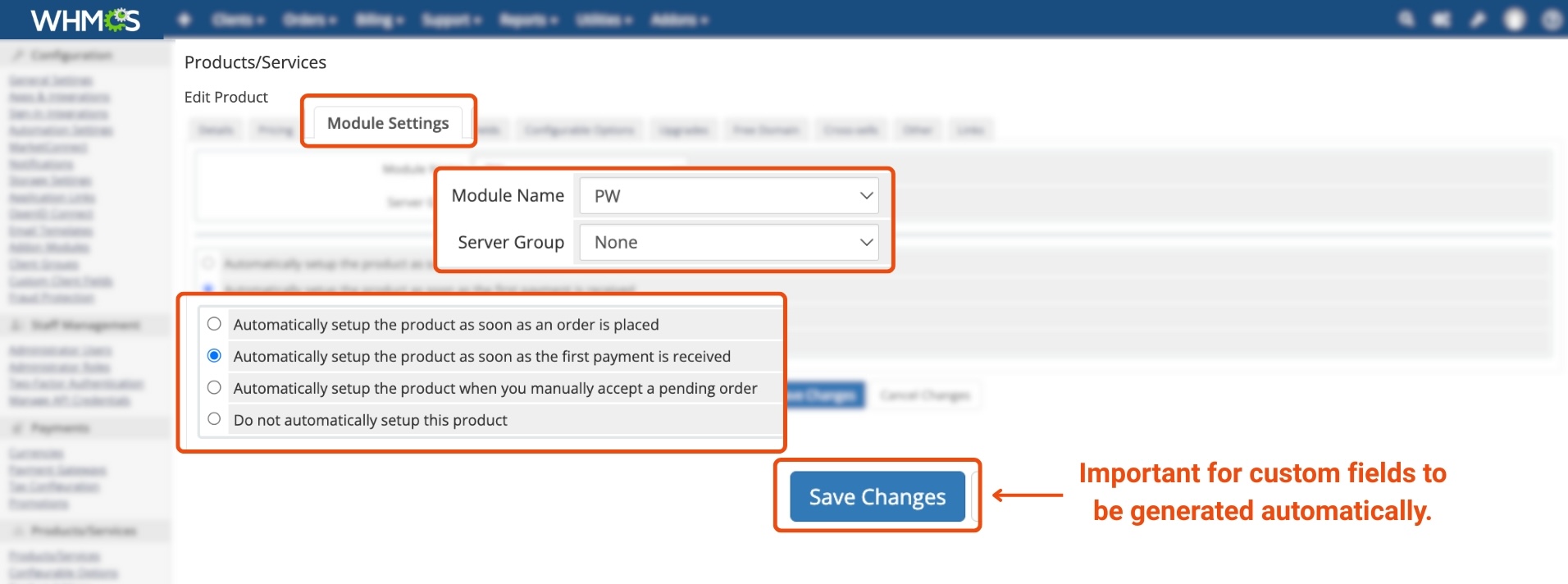
- Module Settings Tab:
- Module Name: Confirm PW is selected.
- Server Group: Leave as None.
- Automation Settings: Choose how the module triggers:
- Automatically setup the product as soon as an order is placed: Triggers provisioning immediately, regardless of payment.
- Automatically setup the product as soon as the first payment is received: Recommended—triggers only after payment is confirmed.
- Automatically setup the product when you manually accept a pending order: Requires manual approval. -> Managing Pending Orders with PressWHMCS.
- Do not automatically setup this product: Disables Pressable integration.
- Recommendation: Select Automatically setup the product as soon as the first payment is received for balanced automation and security.
- Save Progress:
- Click Save Changes while on the Module Settings tab. This pre-populates custom fields required for PressableWHMCS as mentioned in next Step 4.

Step 4: Set Up Custom Fields
Custom fields collect client input during the order process, ensuring the PressWHMCS module provisions sites correctly. These fields are auto-generated after saving module settings, but if they’re missing or edited, recreate them manually as follows.
-
Navigate to Custom Fields:
- In the product configuration, click the Custom Fields tab.
-
Create the Required Fields:
- Add each field one-by-one, matching the exact names below for module compatibility. After saving each, the page refreshes to allow the next.
Field Title Details Field Name website_name | Website Name Field Type Text Box Description Enter a unique, single-word name for your website. Validation Leave empty (not required) Select Options Leave empty (not required) Options Check: Required Field, Show on Order Form Action Click Save Settings 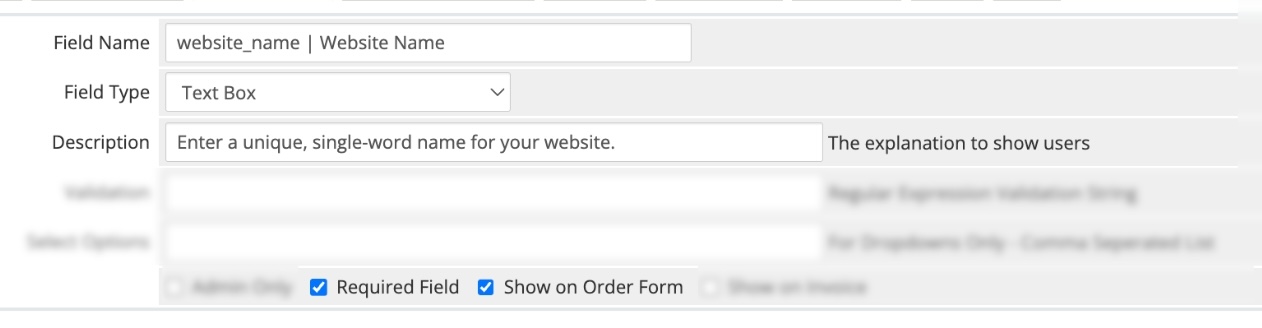
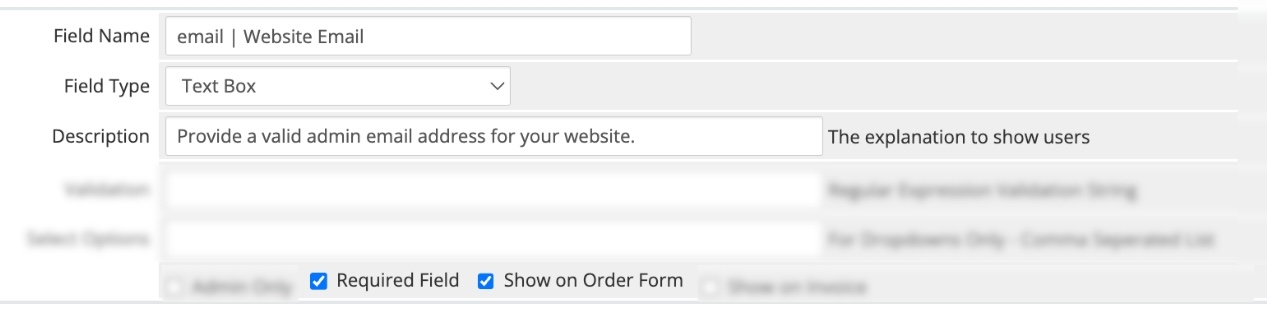
Field Title Details Field Name email | Website Email Field Type Text Box Description Provide a valid admin email address for your website. Validation Leave empty (not required) Select Options Leave empty (not required) Options Check: Required Field, Show on Order Form Action Click Save Settings
Field Title Details Field Name username | Website Username Field Type Text Box Description Provide an admin username for your website. Validation Leave empty (not required) Select Options Leave empty (not required) Options Check: Required Field, Show on Order Form Action Click Save Settings 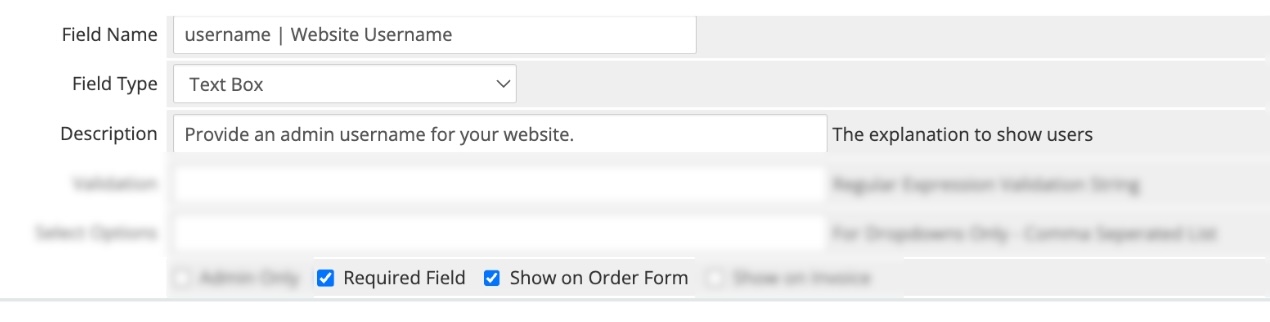
Field Title Details Field Name php_version | PHP Version Field Type Drop Down Description Select the PHP version for your website. Validation Leave empty (not required) Select Options 8.1,8.2,8.3 (comma-separated) Options Check: Required Field, Show on Order Form Action Click Save Settings 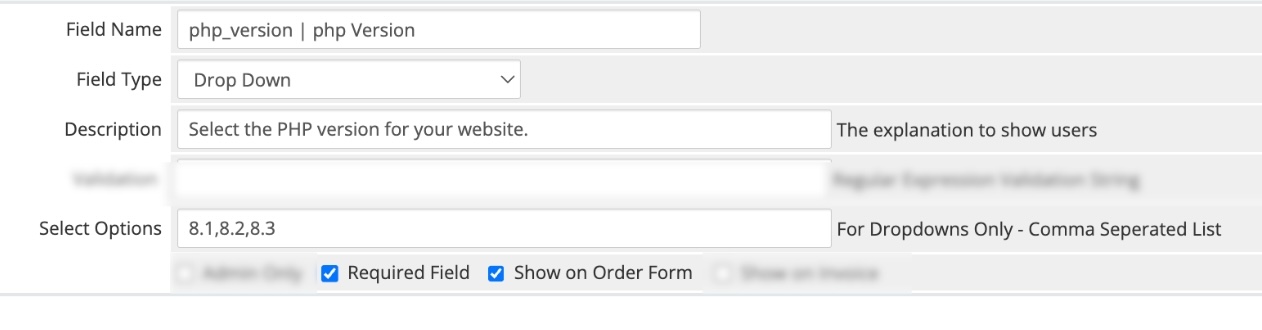
Field Title Details Field Name data_center | Data Center Field Type Drop Down Description Choose the data center location for your website. Validation Leave empty (not required) Select Options Amsterdam. NL,Los Angeles. CA. USA,Washington. DC. USA,Dallas. TX. USA Options Check: Required Field, Show on Order Form Action Click Save Settings 
Step 5: Test Your Product
- Place a Test Order:
- Use the generated product URL or order through your WHMCS client area.
- Verify Provisioning:
- Ensure the PressWHMCS module triggers based on your automation setting and provisions the site on Pressable.
- Check Capacity:
- Confirm your Pressable account has available site slots. If not, provisioning will fail—upgrade your plan at -> Pressable Plans.
Key Considerations
- DNS Integration: The module works best with WHMCS DNS integration for automatic domain setup. Configure nameservers as needed. -> Configuring Custom Nameservers.
- Exact Field Names: Custom field names must match exactly (e.g., website_name) for the module to function.
- Capacity Check: Monitor your Pressable account to avoid provisioning denials due to site limits.
Troubleshooting Tips
- Module Not Triggering? Verify automation settings and custom field accuracy.
- Provisioning Fails? Check Pressable capacity and module configuration.
- Need Help? Open a support ticket here.
Conclusion
You’ve now successfully created a hosting product with PressWHMCS! This setup enables automated WordPress hosting provisioning, enhancing your reselling capabilities. Test thoroughly to ensure everything connects smoothly with Pressable.